Key Takeaways
- You can’t change the sound visitors hear when they press the Ring Doorbell button.
- You can change Ring Chime sound via the Ring App:
- Open Ring App and select your Ring Chime.
- Go to Audio Settings > Chime Tones.
- Preview and select your desired tone.
- Save the changes.
While you can’t change Ring Doorbell’s built-in sound, you can set a custom tone on a connected Ring Chime or smart speaker. Scroll down to learn more.
Can You Change Ring Doorbell Sound?
Yes, you can change Ring Doorbell sound, but only for notifications and connected devices like Ring Chime or smart speakers. You can’t change the sound that the Doorbell button makes.
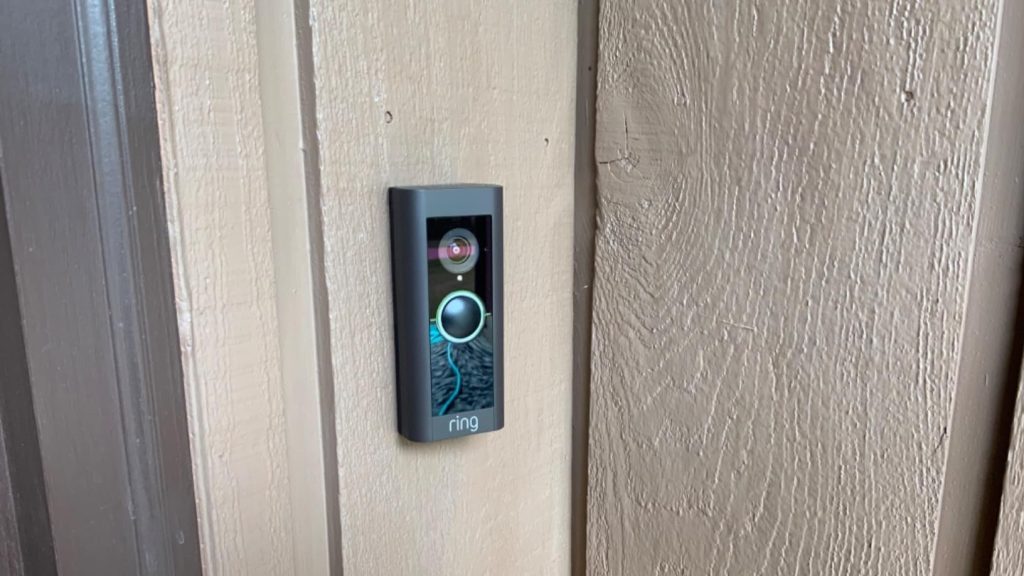
Now, while you can’t change the default ding-dong sound that visitors hear when they ring your doorbell, you can adjust the volume using the app:
Here’s how to adjust Ring Doorbell volume:
- Open the Ring App and tap the three-line icon in the top-left corner.
- Go to Devices, select your Ring Doorbell, and tap Device Settings.
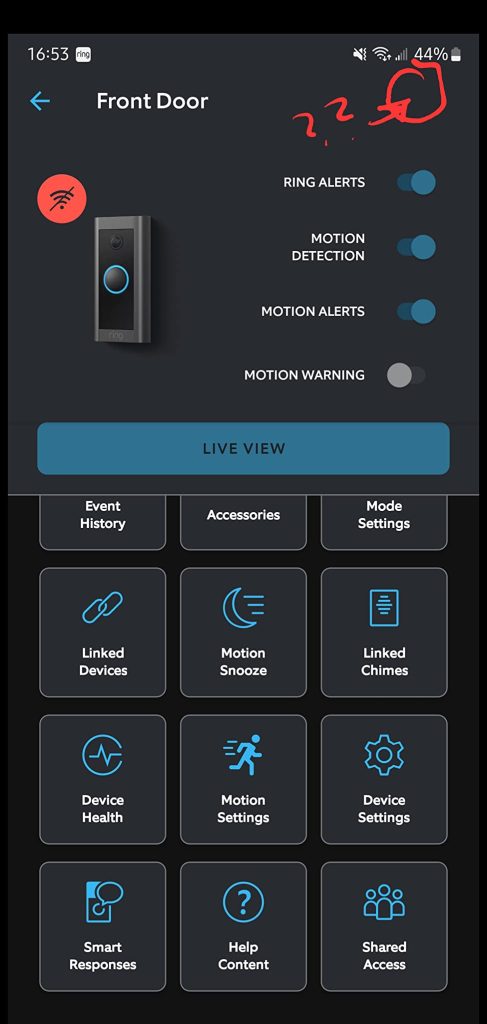
- Go to General Settings and select Volume Settings.
- Lastly, drag the Doorbell Sounds slider right to increase the volume or left to decrease it.
Since you can’t change the Ring Doorbell’s built-in sound, use a Ring Chime or smart speaker to customize the sound on connected devices. Below, I’ll show you how.
How To Change Ring Doorbell Chime Sound
To change Ring Doorbell Chime sound:
- Open the Ring app and tap the hamburger menu on the top right.
- Tap Devices and select the Ring Chime you want to customize.
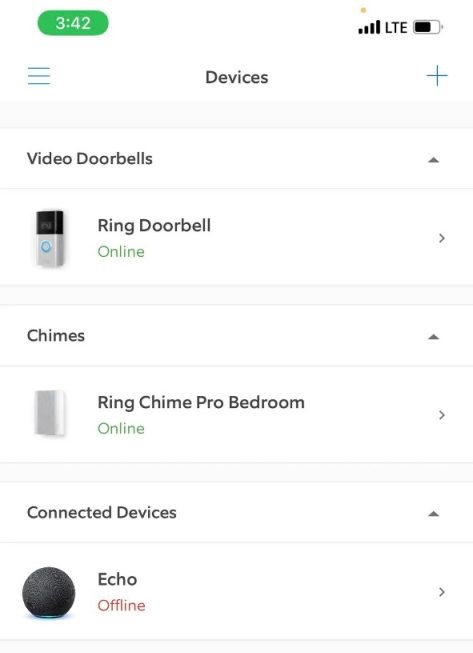
- Tap Audio Settings > Chime Tones > Doorbell Ring.
- Tap Chime Tone and select your preferred sound from the list.

- Finally, tap Save Changes > OK.
- You can also adjust the Ring Chime volume using the Volume slider.
And that’s it. Now press your Ring Doorbell button and test the new Chime tone!
How To Change Ring App Alert Sound
Besides adjusting your Doorbell’s Chime, you can also customize the notification sound on your phone for Ring Doorbell alerts. Here’s how:
- Open the Ring App and tap the three-line icon in the top-left corner.
- Go to Devices and select your Ring Doorbell.
- Tap Device Settings, then select Notification Settings.
- Go to App Alert Tones and choose a new sound for your Ring doorbell alerts.
How To Change Ring Doorbell Sound On Amazon Echo Devices

If you use Amazon Echo speaker instead of a Ring Chime, you can change your Ring Doorbell sound by following these steps:
- Open the Alexa app and tap Devices.
- Select All Devices and choose your Echo device from the list.
- Go to Sounds in the settings menu.
- Select Doorbell Press under Notification Sounds.
- Toggle it on, choose a new sound from the available options, and save the changes.
This will change the sound your Echo device plays when the Ring Doorbell is pressed.
Using Sonos Speakers As A Chime For Ring Doorbell
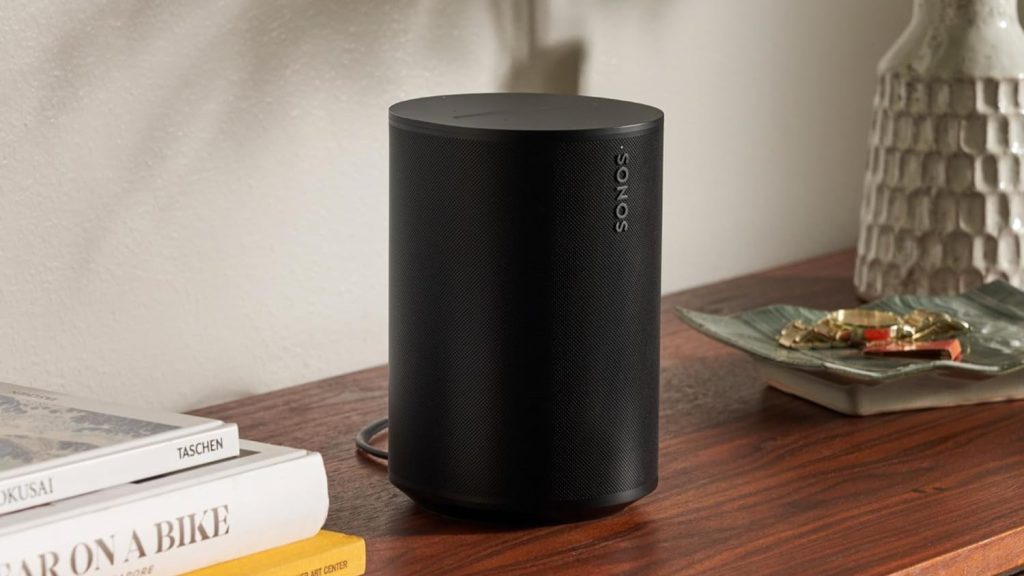
Here’s how to set up Sonos speakers as a Chime for your Ring Doorbell using different methods:
1. Using Alexa to Connect Sonos and Ring
Since Sonos speaker and Ring don’t connect directly, you’ll need Alexa. It bridges the gap through a custom “routine.” When your Ring Doorbell is pressed or detects motion, Alexa will prompt your Sonos to play a sound.
Here’s how to connect Sonos with your Ring Doorbell using Alexa:
- Open the Alexa app.
- Tap the More menu and select Routines.
- Press the + icon to create a new routine.
- Choose When this happens and select Smart Home.
- Find your Ring Doorbell in the list and choose the trigger (e.g., doorbell pressed or motion detected).
- Tap Add Action, then select Custom to type in the command for Alexa, like telling Sonos to play a sound.
- In the custom action, specify the command for your Sonos speaker.
- Name your routine for easy identification, and save it to activate.
2. Using SmartThings App to Connect Sonos and Ring
Samsung’s SmartThings can also link your Sonos speaker and Ring Doorbell, even though they don’t connect directly. Here’s how to set it up:
- Open the SmartThings app.
- Tap Automations and press the + icon to create a new automation.
- For the If condition:
- Select Device status and choose your Ring Doorbell.
- Set the trigger, like when motion is detected or when the doorbell is pressed.
- For the Then action:
- Select Control device and choose your Sonos Speaker.
- Choose the action for your Sonos speaker, like playing a specific sound or chime.
- Review your automation and save it to activate.
Perfecting Your Ring Doorbell Sound
While you can’t change the sound of the Ring Doorbell itself, you can customize the sound on a connected Chime or a smart speaker. Here are some more tips to make the most of your Ring Doorbell:
- Increase Alexa Ring Doorbell volume to make sure you can hear it clearly.
- If your Ring Doorbell battery dies, it won’t ring. So, keep it charged.
- Your Ring Doorbell only rings once when someone presses it to avoid spam. It’s not a malfunction.
Frequently Asked Questions
How to Change Ring Doorbell Sound Without Chime?
How to Turn Off Ring Doorbell Sound Outside?
How do I know if my Ring Doorbell sound settings need an update?
Can I customize the Ring Doorbell sound for specific visitors?
Why does my doorbell sound weird?
Where is the volume on a Ring doorbell?


Hashir
Hi, I’m Hashir, a tech enthusiast with a deep love for smart home innovations. My interest in technology has always been driven by the idea of making everyday life more streamlined and efficient. After years of experimenting with smart devices in my own home, I’ve made it my mission to share what I’ve learned with others. I focus on practical, easy-to-understand solutions that anyone can implement to enhance their home. Writing for JustSmarter allows me to connect with fellow tech lovers and help them take their first steps—or next steps—into the exciting world of smart homes.