Key Takeaway
- The Ring Chime reset button may not work due to:
- Power Supply Issues
- Dust or Debris
- Software Glitches
- Unstable Network Connection
- Faulty Reset Button or Ring Chime
- To fix a Ring Chime reset button not working:
- Check the Power Connection
- Clean Around the Reset Button
- Reset Your Chime
- Perform Power Cycle
- Optimize Settings in App
- Contact Ring Support
If your Ring Chime reset button isn’t working, it can be really frustrating, especially when your Chime stops responding or won’t reconnect. In this guide, I’ll share the reasons for your Ring Chime reset button not working and walk you through some easy fixes.

Why Is Ring Chime Reset Button Not Working?
Your Ring Chime reset button might not be working due to several reasons:
- 🛑 Button Malfunction: Over time, the reset button can become stuck, worn out, or unresponsive due to frequent use or internal damage.
- ⚡ Power Issues: If your Ring Chime isn’t receiving power correctly, the reset button won’t function.
- 🖥️ Software Glitches: Sometimes, software bugs can prevent the reset button from working as expected.
- 🧹 Debris or Dust: Dust or debris around the reset button can prevent it from being pressed properly.
- ⚙️ Internal Faults: Internal faults within the Chime could cause the button to be non-functional. In this case, a replacement might be necessary.
How to Fix a Ring Chime Reset Button Not Working
If your Ring Chime reset button isn’t working, here are some simple steps to troubleshoot and fix the problem:
1. Check the Power Connection

This may sound obvious but start with checking the power supply to your Ring Chime. It may not be plugged in properly or there may be some issue with the outlet itself.
So, check and make sure that your Ring Chime is securely plugged into a working outlet. Try unplugging it and plugging it back in or testing it in a different outlet to rule out power issues.
2. Clean Around the Reset Button
Dust and debris can build up around the reset button over time, causing it to stick or become unresponsive, making it seem like the Ring Chime reset button not working.
Here’s how to clean it effectively:
- Unplug your Ring Chime from the power outlet for safety while cleaning.
- Use a dry toothbrush or microfiber cloth to clean the Ring Chime.
- Brush or wipe around the reset button, focusing on edges where dust collects.
- Use a cloth wrapped around a toothpick for tight spots.
- Use compressed air to blow away stubborn dust, keeping the can upright.
- Sometimes, the reset button may require a firmer press. Use a paperclip to press and hold the reset button firmly for 10-15 seconds to ensure proper contact.
By regularly cleaning around the reset button, you can make sure that the button works as expected when you need it.
3. Address Network Issues
Your Ring devices heavily rely on the internet so they need a solid Wi-Fi connection to work properly. Here are a few things you can do to fix and prevent network issues:
- Keep Ring devices in close range of the router.
- Disconnect unnecessary and unused devices from the Wi-Fi to clear up bandwidth.
- Move your Chime away from devices like baby monitors and microwaves to improve its responsiveness.
- Use Wi-Fi extenders to increase your Wi-Fi range.
- Restart the router.
- Consider upgrading your internet plan.
4. Update Firmware
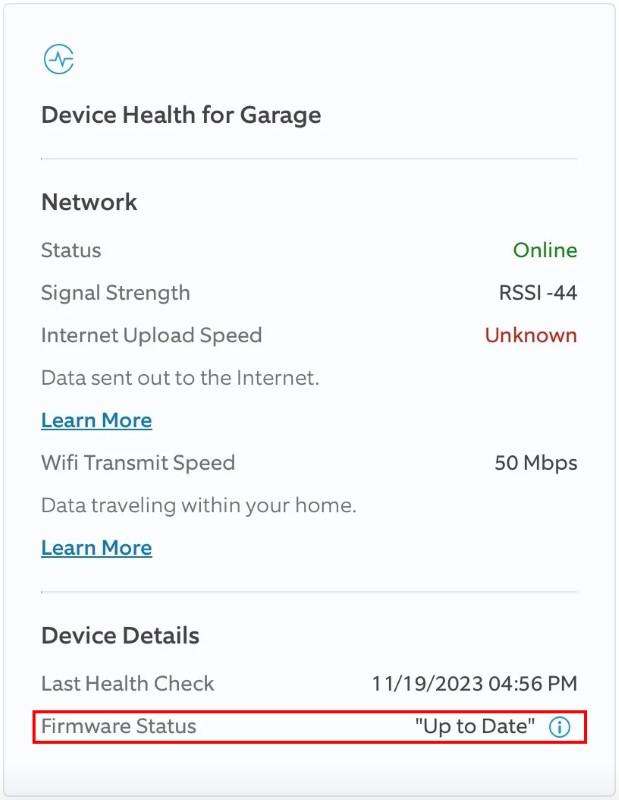
Updating the Chime’s firmware can often fix software-related issues that affect the reset button. Here’s how to check for firmware updates in the Ring app:
- Open the Ring app on your smartphone.
- Select your Ring Chime from the list.
- Go to Device Health.
- Tap Firmware. If it’s outdated, a version number will appear and Ring will update automatically.
- If it is already updated, you’ll see Up to Date instead of version number.
5. Factory Reset via the Ring App
If the physical reset button isn’t working, you can still reset your Ring Chime through the Ring app. Here’s how to do it:
- Open the Ring App on your smartphone or tablet.
- Go to Devices and select your Ring Chime.
- Tap on the settings gear icon in the top right corner to access your Chime’s settings.
- Scroll down to find the General Settings section to manage the device options.
- Tap Remove Device to disconnect the Chime from your account.
This will effectively reset your Ring Chime to its default factory settings.
6. Contact Ring Support
If none of the above steps have fixed your Ring Chime reset button not working issue, there may be a deeper internal issue with your Chime. Contact Ring Support for further assistance or to explore replacement options.
Reset Your Ring Chime With the Button
Power supply and internet issues are often the main reasons behind your Ring Chime reset button not working. Keep your device updated and maintain it regularly to avoid reset problems.
Here are more guides about Ring devices you may find interesting:
- You don’t need a Ring Doorbell Chime, but it’s helpful if you have poor Wi-Fi, live in a large, multi-floor property, or in noisy environments.
- Your Ring Doorbell only rings once when someone presses it to avoid spam.
- To increase Alexa Ring Doorbell volume, press the + button or ask Alexa to set it to your desired level.
Frequently Asked Questions
Why is my Ring Chime light not flashing?
Why is my Ring Chime not resetting?
Is my Ring Chime dead?
Why is my Ring Chime light not flashing?
How to reset Ring Chime?
Why is my Ring Chime 1st generation not working?


Hashir
Hi, I’m Hashir, a tech enthusiast with a deep love for smart home innovations. My interest in technology has always been driven by the idea of making everyday life more streamlined and efficient. After years of experimenting with smart devices in my own home, I’ve made it my mission to share what I’ve learned with others. I focus on practical, easy-to-understand solutions that anyone can implement to enhance their home. Writing for JustSmarter allows me to connect with fellow tech lovers and help them take their first steps—or next steps—into the exciting world of smart homes.