Key Takeaways
- To increase or decrease Ring Doorbell volume:
- Open the Ring app > tap Menu ≡.
- Select Devices and choose your Ring Doorbell.
- Tap Device Settings > General Settings.
- Move the slider under Doorbell Sounds to adjust the volume.
- Adjust Two-Way interaction volume by moving the slider under Device Speaker.
Is your Ring Doorbell too loud or too quiet? Whether you’ve been startled by a loud ring or missed a visitor because the sound was too low, adjusting the volume is easy. Just scroll down to find out how to increase or decrease your Ring Doorbell volume.
How to Adjust Ring Doorbell Volume
Your Ring Doorbell has various sounds, whether from the doorbell box outside, your Chime, or Echo speaker. Below, I’ve shared how to adjust Ring Doorbell volume for all these sounds.
1. How to Adjust Volume on Ring Doorbell (When the Button is Pressed)
Follow these steps to adjust the volume on your Ring Doorbell device (the one outside your house) when someone presses the button:
- Launch the Ring app and tap Menu ≡.
- Tap on Devices and choose your Ring Doorbell.
- Tap on Device Settings.
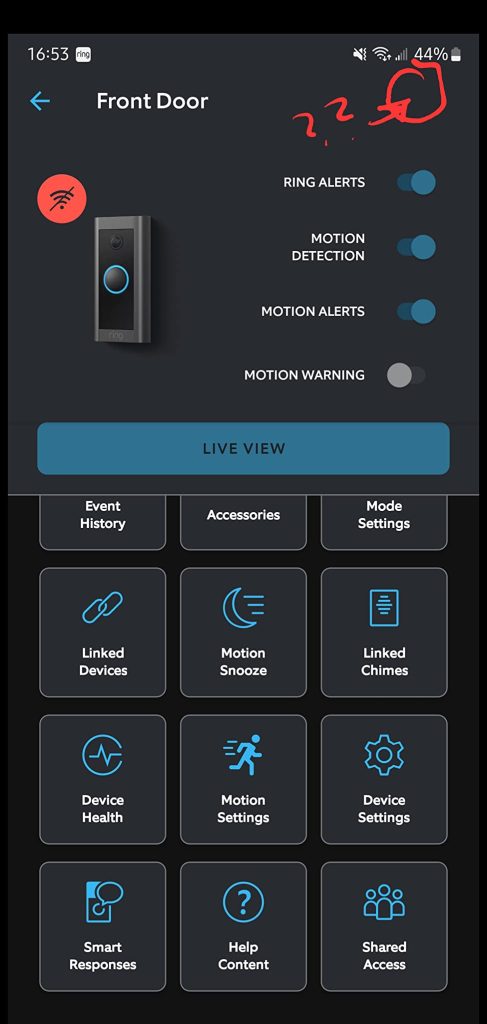
- Go to General Settings > Volume Settings.
- Drag the slider under Doorbell Sounds to the right to make it louder or to the left to make it quieter.

Note: Some Ring models might not let you change the outside ringer volume.
2. How to Adjust Volume on Ring Chime Pro and Chime

To adjust the volume of your Ring Chime or Chime Pro (the speaker inside your house), follow these steps:
- Open the Ring app and tap Menu ≡.
- Tap Devices and select your Ring Chime or Chime Pro.
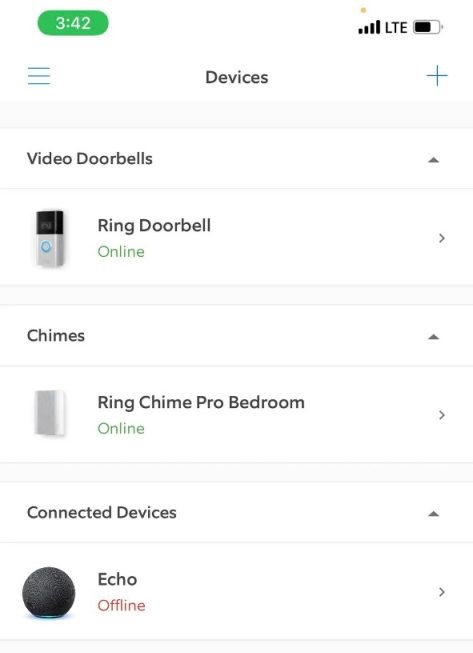
- Select Audio Settings > Chime Tones > Doorbell Ring.
- Move the Volume slider to increase or decrease the Ring Doorbell Chime volume.
3. How Do I Make My Ring Doorbell Louder on Echo Devices?

If your Ring Doorbell is connected to an Echo device instead of a Chime or Chime Pro, here’s how to adjust its volume:
- Open the Amazon Alexa app on your phone.
- Tap Devices and select your Echo device used with Ring.
- Tap Sounds.
- Adjust the Alarm and Timer Volume slider to control the Ring Doorbell volume on your Echo device.
- You can also use the Echo buttons to adjust the volume.
4. How to Adjust Voice Volume on Ring Doorbell

Controlling the volume while speaking to a delivery person or greeting a friend is really handy. Here’s how to adjust it on your Ring Doorbell:
- Adjust the volume during a live Ring video call using your phone’s volume buttons.
- Alternatively, open the Ring app and tap menu ☰.
- Tap Devices > select your Ring Doorbell.
- Go to Device Settings > General Settings > Volume Settings.
- Adjust the volume slider for Device Speaker.
Note: Some models may have additional settings in the Ring app.
5. How to Adjust Volume on Ring Camera

To adjust the volume on the Ring Camera like the Floodlight Cam Wired Plus and Floodlight Cam Wired Pro, follow these steps:
- Open the Ring app and navigate to the menu ☰ > Devices.
- Select your Ring Camera.
- Tap Device Settings > General Settings > Volume Settings.
- Move the volume slider to set it to the desired level.
Troubleshooting Volume and Sound-Related Issues on Ring Doorbell
Having trouble with your Ring Doorbell volume or sound settings? Here are some common issues and their solutions:
- 🔕 No Sound From the Ring Doorbell: If your Ring Doorbell isn’t chiming or transmitting voices, it could be due to muted settings, a faulty speaker, or software glitches. To fix this issue:
- Open the Ring app, go to Device Settings, and check the sound levels. Sometimes, it’s just a volume oversight.
- If the issue persists, try a hardware reset. Detach the doorbell, find the reset button, and reboot the device to fix minor glitches.
- Ensure your Ring app and device firmware are up-to-date.
- 🔉 Low Volume on the Ring Doorbell or Chime: If your Doorbell sound is faint, it could be due to low volume settings, placement in a large area, or interference from other devices. Here’s how to increase your Ring Doorbell sound:
- Check the Ring app’s device settings and slide the volume to its maximum.
- If the Doorbell is in a large or noisy area, reposition it or add a Ring Chime in another room for better sound coverage.
- Wireless interference from other devices can also affect sound transmission. Ensure your Ring device isn’t surrounded by other wireless gadgets.
- 🎶 Echo or Feedback: Echo can happen if the Doorbell is too close to walls or the volume is too high. Move it away from flat surfaces and lower the speaker volume in the Ring app to reduce feedback.
- ⚠️ Distorted Audio or Static: Weak Wi-Fi often causes distorted audio or static. Check signal strength at your Doorbell, move the router closer, or use a Wi-Fi extender. Run a speed test to ensure a stable, fast connection.
- 🚫 Ring Doorbell Not Communicating: If your Ring Doorbell isn’t syncing with other devices, ensure they are on the same Wi-Fi network. If the issue continues, remove and re-add the doorbell in the app to refresh the connection.
- 🐢 Delayed Audio Notifications: Delays can be due to network congestion, background apps, or power-saving modes. Reduce network activity, update your OS and Ring app, and check power-saving settings.
- ❌ Volume Doesn’t Change: If volume adjustments don’t work immediately, wait a few minutes. If still no change, restart the app and doorbell, and double-check audio settings.
- 📱 App Sync Issues: If volume adjustments in the Ring app don’t match what you hear, update the app and resync your device in the settings.
- 🔋 Loud Volume Draining Battery: High volume or frequent alerts can drain a battery-powered doorbell quickly. Lower the volume or adjust motion settings to extend battery life.
Make Your Ring Doorbell Volume Louder
So, this was all about adjusting the Ring Doorbell volume. Learn what more you can do with your Ring Doorbell:
- Increase Alexa Ring Doorbell volume so you can hear it clearly throughout the house.
- If you live in a large house or a noisy neighborhood, you may need a Ring Doorbell Chime.
- Your Ring Doorbell rings only once per press to prevent spam, which is by design and not a malfunction.
Frequently Asked Questions
Is There a Way to Control the Ring Doorbell Microphone Volume?
Is It Possible to Link Ring Doorbell Volume Settings with Other Smart Home Devices?
Can Frequent Volume Adjustments Affect the Longevity of My Ring Doorbell?
Can I Create Custom Volume Profiles for Specific Scenarios on My Ring Doorbell?
Is There a Way to Automatically Adjust the Ring Doorbell Volume Based on Ambient Noise Levels?
Why is My Ring Doorbell Volume Too Low?
How Do I Maintain the Ideal Voice Volume on My Ring Doorbell?
How to Adjust Ring Motion Warning Volume?


Hashir
Hi, I’m Hashir, a tech enthusiast with a deep love for smart home innovations. My interest in technology has always been driven by the idea of making everyday life more streamlined and efficient. After years of experimenting with smart devices in my own home, I’ve made it my mission to share what I’ve learned with others. I focus on practical, easy-to-understand solutions that anyone can implement to enhance their home. Writing for JustSmarter allows me to connect with fellow tech lovers and help them take their first steps—or next steps—into the exciting world of smart homes.