

Key Takeaways
- To fix a Ring Alarm, Ring Doorbell, or Ring Chime stuck updating:
- Restart the Chime.
- Ensure solid Wi-Fi connection.
- Check firmware updates.
- Update the Ring app.
- Reset the Chime and reconnect it to your Wi-Fi.
- Contact Ring Support if all else fails.
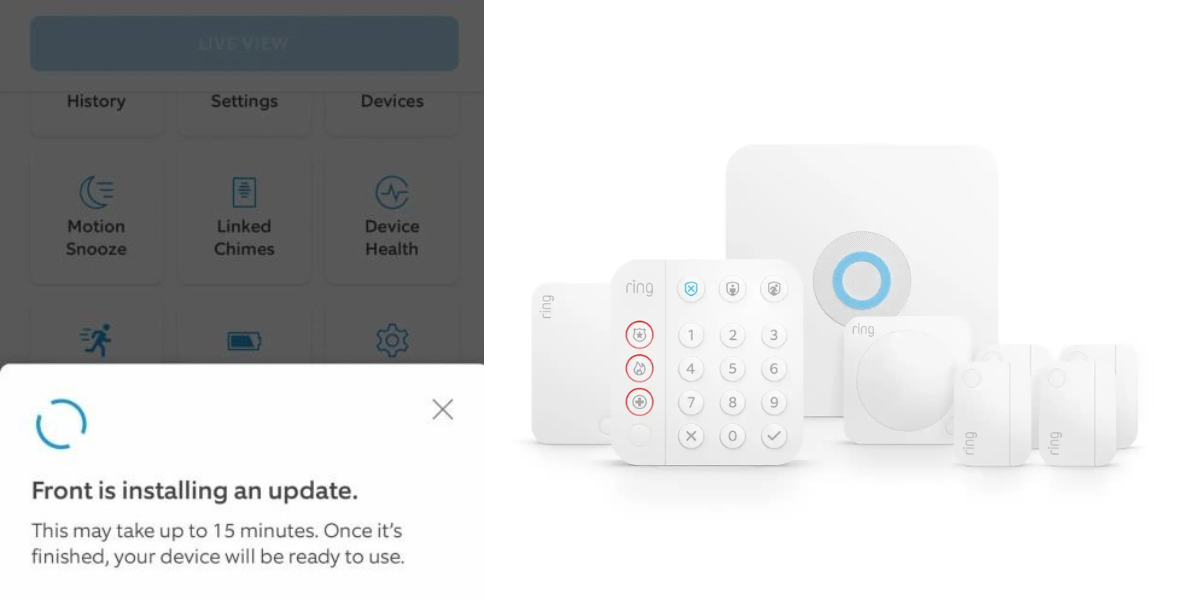
Is your Ring Alarm, Ring Doorbell, or Ring Chime stuck updating? I’ve got effective tricks to get them back up and running in no time. Let’s see how!
How to Fix Ring Chime Stuck Updating
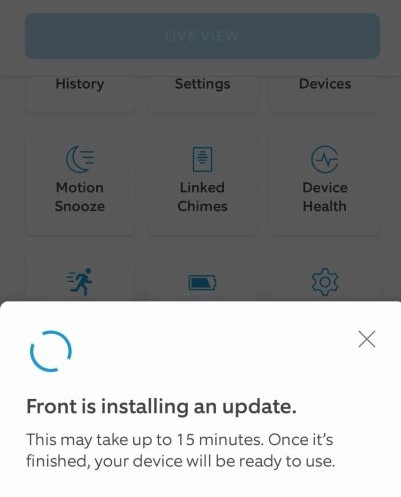
If your Ring Chime is stuck updating, start with some quick checks before moving to advanced fixes. These steps can help fix the issue and get your device back on track.
Basic Checks Before Troubleshooting
Here are some basic checks to perform before any troubleshooting:
- ✅ Ensure Stable Internet Connection: Check your Wi-Fi signal and restart your router if needed.
- 🔋 Check Power Source: Verify your device is properly powered; charge batteries or check connections.
- 📲 Update the Ring App: Make sure you have the latest version of the Ring app.
- 📱 Verify Device Status: Open the app and check if your device is offline.
- 🔁 Restart the Device: Power off your device, wait a few seconds, then turn it back on.
- 🚫 Disable VPNs or Proxies: Temporarily disable VPNs or proxies as they may block updates.
- ⚠️ Check for Service Outages: Look for outages on Ring’s status page or forums.
Troubleshoot Ring Chime Stuck Updating Issue
If the basic checks didn’t fix your issue, you can try some easy troubleshooting steps. Below, I’ve shared some tried and tested methods to fix Ring update problems.
1. Restart the Chime
Restarting your Ring Chime can often fix minor glitches that cause update issues. To restart, unplug the Chime from the outlet, wait about 10 seconds, and plug it back in. This simple reset can help clear any temporary problems and allow the update process to complete.

2. Check Your Wi-Fi Connection
A weak Wi-Fi connection is one of the most common reasons for updates getting stuck. Here’s how to improve your Wi-Fi connection:
- Make sure your Ring Chime is within range of a strong and stable Wi-Fi signal.
- Check the Wi-Fi strength in the Ring app under Device Health.

- If the signal is weak, move your Chime closer to your router.
- Disconnect unnecessary devices from the Wi-Fi network to free up some bandwidth.
- Consider updating to a better internet plan if needed.
- Consider using a Wi-Fi extender to boost the signal.
3. Check Firmware Updates
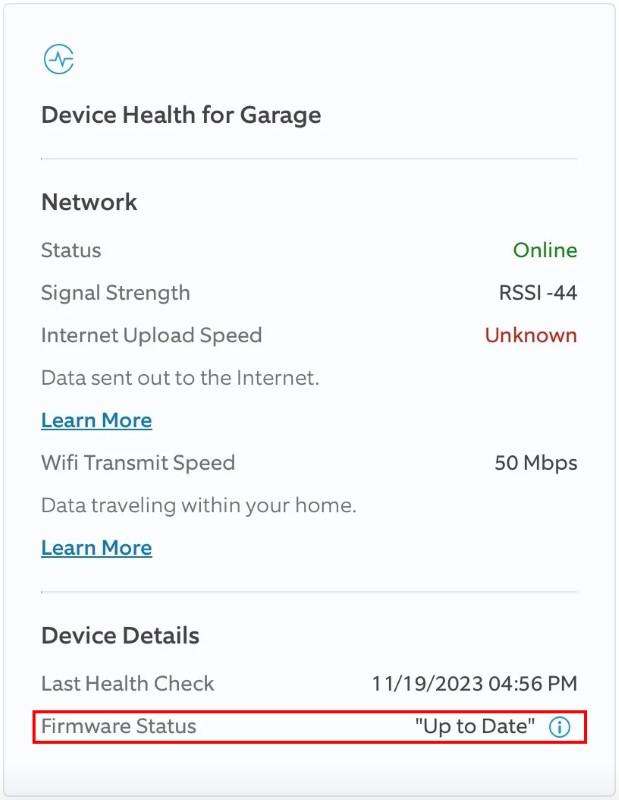
Sometimes, the update may be stuck due to incomplete or failed firmware downloads. Here’s how to check firmware updates in the Ring app:
- Open the Ring app on your smartphone.
- Select your Ring Chime from the list.
- Go to Device Health.
- Tap Firmware. If it’s outdated, a version number will appear and Ring will update automatically.
- If it is already updated, you’ll see Up to Date instead of version number.
4. Update the Ring App
Sometimes, the issue might not be with your Chime but with the Ring app itself. An outdated app can lead to connectivity and update issues. So, make sure your app is up to date.
Follow these steps to check and update the Ring app and prevent the Ring Chime stuck updating issue:
On Android
- Open the Google Play Store and tap your profile icon at the top right.
- Select Manage apps and device.
- Under Updates Available, select Update all to update all apps automatically.
- Alternatively, tap See details to find and update the Ring app specifically.

On iPhone
- Open the Apple App Store.
- Go to the Search icon in the bottom-right, type ring, and tap search.
- If Update appears next to the Ring app, tap it to update.
- If it shows Open, your Ring app is already up to date.

5. Reset the Chime
⚠️ Use a factory reset as a last resort, as it will restore your Chime to default factory settings.
If the above steps don’t resolve the issue, a factory reset might be necessary. Here’s how to reset your Ring Chime:
- Find the reset button on the side of your Ring Chime.
- Press and hold the reset button for about 15 seconds.
- Watch for the front light to flash, indicating the reset process has begun.
- Once the reset is complete, open the Ring app on your smartphone to reconnect your Chime to your Wi-Fi network.
- In the Ring app, select your Ring Chime.
- Follow the in-app instructions to set up your Wi-Fi network again.
- Then, reconnect your Ring Chime with your Wi-Fi.
This ensures your Chime has the right settings to connect to your network and receive updates properly to prevent the Ring Chime stuck updating issue.
Can You Fix Ring Doorbell or Ring Alarm Stuck Updating?
Yes, you can fix a Ring Doorbell or Ring Alarm that is stuck updating with some simple troubleshooting steps. Start by checking your Wi-Fi connection, restarting your device, and ensuring the Ring app is updated. If the issue persists, you may need to perform a factory reset or contact Ring Support for further assistance.
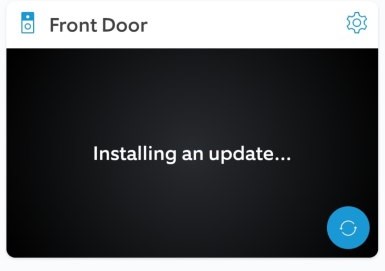
As you can see, the steps are similar to fixing the Ring Chime update issue. Below, I’ve provided a brief overview of these fixes. For detailed instructions, refer to the section above.
- Restart Your Device: Unplug your Ring Doorbell or Alarm from power, wait a few seconds, and then plug it back in.
- Check Wi-Fi Connection: Make sure your device is connected to a strong Wi-Fi signal. Weak or unstable connections are common reasons updates get stuck.
- Update the Ring App: Ensure that you’re using the latest version of the Ring app. Check your app store for any available updates.
- Check Firmware Updates: Go to the Ring app, select your device, and check under Device Health for any pending firmware updates.
- Factory Reset the Device: If other steps don’t work, you may need to perform a factory reset. Press and hold the reset button on your device for 15-20 seconds, then set it up again through the Ring app.
- Contact Ring Support: If your device remains stuck after trying these fixes, contact Ring Support for further assistance.
When to Contact Ring Support
If you’ve tried all the above steps and your Ring device still struggles to update, it’s time to reach out to Ring Support. Here are some scenarios when you should contact Ring Support:
- Update Still Stuck: If updates are still stuck after troubleshooting, contact Ring Support.
- Frequent Update Failures: Repeated update issues may indicate a deeper problem; Ring Support can diagnose it.
- Error Messages: Specific errors or codes? Ring Support can guide you through resolving them.
- Unresponsive Device: If your device doesn’t respond after resets, it may need further troubleshooting or replacement.
- Persistent Connectivity Issues: Ongoing Wi-Fi problems may need specialized support to fix compatibility issues.
- Firmware Problems: Suspected firmware issues not fixed by resets may need advanced solutions from Ring Support.
- Hardware Issues: Signs of hardware failure like overheating or power issues keeping your Ring Chime stuck updating? Ring Support can help with repairs.
Why Your Ring Devices Get Stuck Updating
Here are some common reasons why your Ring devices may get stuck updating:
- 📶 Weak Wi-Fi Connection: A poor or unstable Wi-Fi connection can interrupt the update process, causing the device to get stuck.
- 📱 Outdated Ring App: Using an outdated version of the Ring app can cause communication issues between your device and the app, causing update problems.
- 🐞 Firmware Glitches: Occasionally, bugs or glitches in the device’s firmware can cause updates to fail or hang during the process.
- ⚡️ Insufficient Power Supply: Ring devices that are not receiving enough power, whether due to a low battery or power fluctuations, may have trouble completing updates.
- 🌐 Server Issues: Temporary outages or issues with Ring’s servers can prevent your device from successfully downloading and installing updates.
- ⏳ Interrupted Update Process: Restarting the device or app during an update can interrupt the process and cause the device to get stuck.
- 🔐 Network Firewall or Security Settings: Certain network security settings or firewalls can block the update from downloading properly and keep your Ring Chime stuck updating.
Update Your Ring Devices Smoothly
In my experience, maintaining a strong Wi-Fi connection, keeping the device near the router during updates, rebooting your Ring device, and performing a factory reset if needed usually fix the Ring Chime stuck updating issue.
Here are some more guides on Ring devices that you may find helpful:
- To fix a Ring Camera update taking forever, ensure strong Wi-Fi, restart the Ring app, and reboot your camera by removing the battery or unplugging it.
- To fix Ring Snapshot not updating, check Wi-Fi, restart the device, toggle Snapshot, clear cache or reinstall the app, and reset as a last resort.
- If your Ring Doorbell stopped working after rain, power it off, dry it, restart it, check connections, ensure stable Wi-Fi, and contact Ring if the issue persists.
Frequently Asked Questions
Why is my Ring firmware update stuck at 90?
How to fix the Ring installing update stuck issue on the doorbell?
Why is my Ring Doorbell stuck installing update happening?
What to do when Ring says “there was a problem saving your chime tone?”


Hashir
Hi, I’m Hashir, a tech enthusiast with a deep love for smart home innovations. My interest in technology has always been driven by the idea of making everyday life more streamlined and efficient. After years of experimenting with smart devices in my own home, I’ve made it my mission to share what I’ve learned with others. I focus on practical, easy-to-understand solutions that anyone can implement to enhance their home. Writing for JustSmarter allows me to connect with fellow tech lovers and help them take their first steps—or next steps—into the exciting world of smart homes.