

Key Takeaways:
- To get rid of the orange bar on Echo Show:
- Ensure stable and solid Wi-Fi network
- Switch to 5GHz band
- Check Microphone and Camera
- Restart the device
- Clear cache
- Update its software
- Remove problematic apps and Alexa sklls
- Factory reset Echo Show
- Get in touch with Amazon Customer Support
The orange light on Alexa Show has got you stumped? Well, it typically indicates connectivity issues or software glitches– which are generally very easy to fix. So, why your Echo Show has orange line, and what can you do to fix and prevent this? Read on and find out.
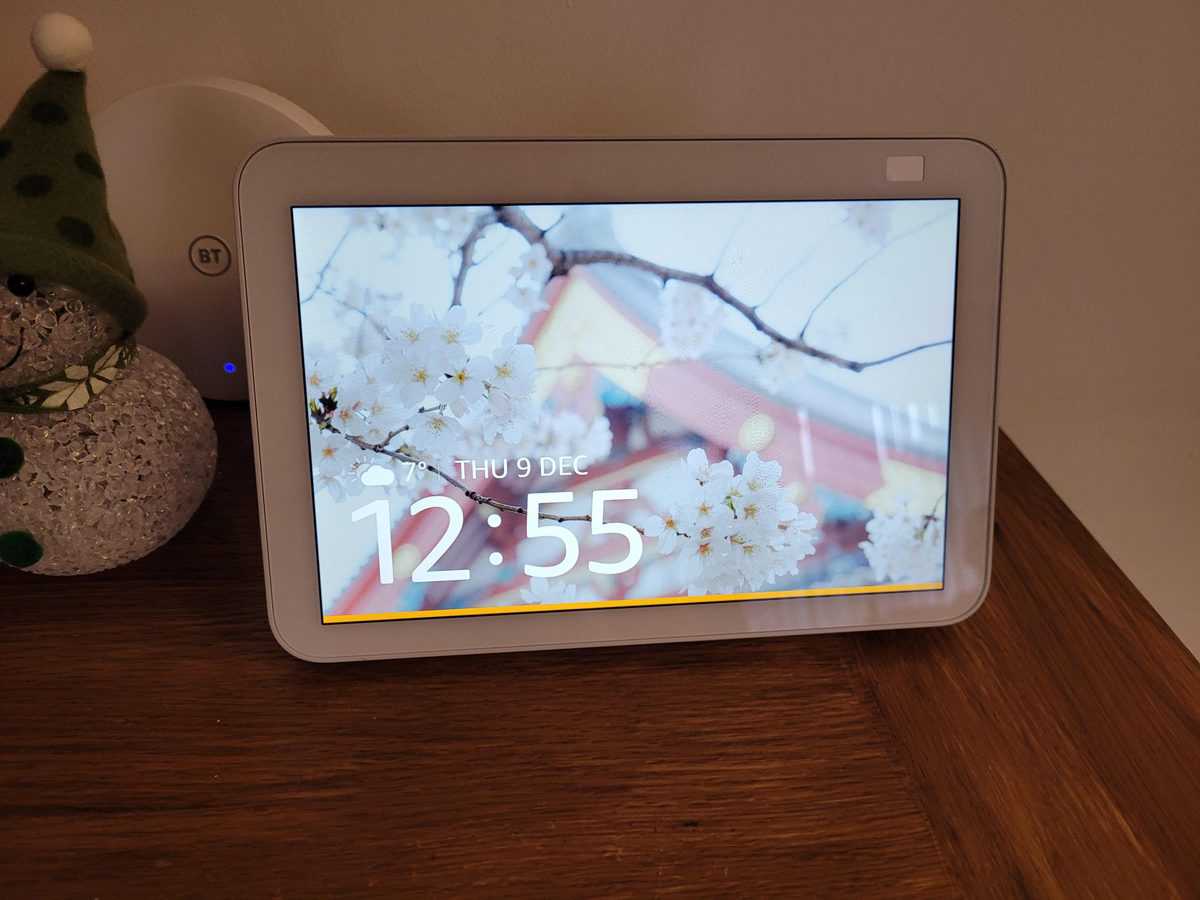
Why Does My Echo Show Have an Orange Line?
The orange line on an Echo Show may be due to internet connectivity issues, microphone problems, software glitches, or Amazon server issues. It often means the device cannot hear voice commands or connect to Wi-Fi effectively.
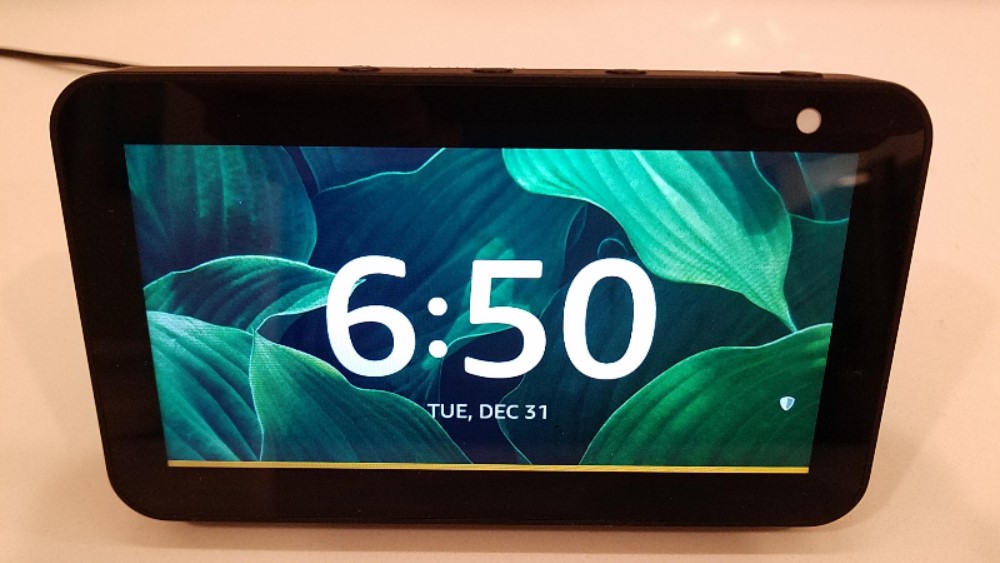
Below, I have detailed different tricks that have helped me fix my Echo Show whenever it flashed that orange light.
9 Easy Fixes for the Solid Orange Line on Bottom of Echo Show
To fix the solid orange bar issue on your Amazon Echo Show, ensure a strong Wi-Fi connection, restart the device, clear cache, update the software, check camera and microphone settings, remove incompatible apps and Alexa skill, or reset your Echo Show. Reach out to Amazon Support if all fails.

1. Ensure Strong Wi-Fi Connectivity
Here are a few things you can do to make sure your Echo Show receives optimal Wi-Fi connectivity:
- Check Internet Connection: Make sure your internet is working. If other devices are also offline, you might be facing an internet outage.
- Place Echo Show Smartly: Move your Echo Show closer to your Wi-Fi router. Too much distance or obstacles like walls can weaken the Wi-Fi signal.
- Eliminate Interference: Keep your Echo Show away from appliances like microwaves, cordless phones, or baby monitors, which can interfere with Wi-Fi signals.
- Reduce Network Load: Disconnect some devices if your Wi-Fi network is overloaded. Too many devices can slow down the connection.
- Reset Your Router: Resetting your router can help with various network issues. Simply turn off your router, wait for a minute, and then turn it back on.
- Check Amazon Server Outage: It’s possible that there be some sever issues on Amazon’s end. Check it here and if that turns out to be the case, you’ll just have to wait for Amazon to resolve the issue.
2. Optimize Router Settings
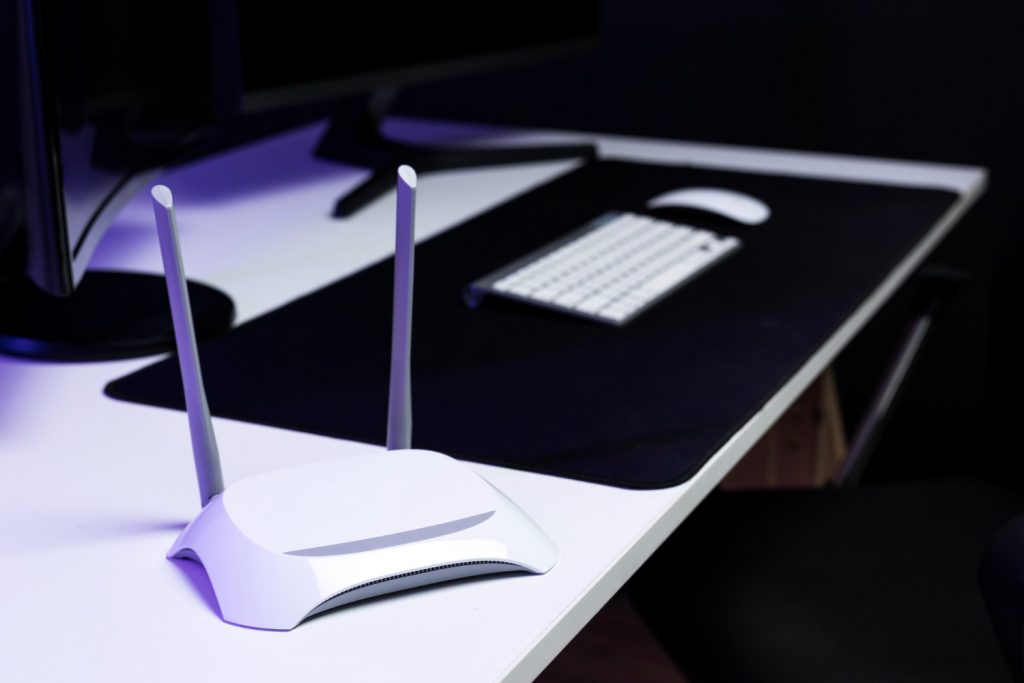
Experiment with your router’s frequency bands. The 2.4GHz band offers better coverage but might be more crowded, while the 5GHz band provides faster speeds but has a shorter range. Choose the one that offers a more stable connection for your Echo Show.
So, access your router’s settings and change the Wi-Fi channel or band. The Echo Show typically performs better on the 5 GHz band.
3. Check Microphone and Camera Settings
Sometimes when I see the orange bar at bottom of my Echo Show, I find the microphone or camera turned off. It could happen accidentally so it’s worth checking.
For the Microphone:
- Swipe down from the top and tap the gear icon.
- Go to Device Options and look for a microphone setting.
- If the microphone is off, tap to turn it on.
- Say “Alexa” followed by a command to see if it works.
For the Camera:
- Swipe down and tap the gear icon again.
- Scroll to Device Options and select Camera.
- If the camera is off, tap the toggle to enable it.
- Try using a feature that needs the camera, like making a video call, to see if it’s working.
4. Restart Your Echo Show
Power cycling, can reset the device’s internal state and often resolves temporary glitches. This simply means restarting your Echo Show by following these steps:
- Unplug your Echo Show from the power outlet.
- Wait for about 30 seconds to drain any residual power.
- Then plug it back in.
After this, there’s a good chance your Echo Show won’t have the orange line anymore.
5. Clear Cache
Clearing the cache on your Echo Show can help resolve various issues– including that pesky orange bar. To do so, follow these steps, which may vary slightly depending on your particular model:
- Open Settings on your Echo Show. You can usually do this by swiping down from the top of the screen and tapping on the settings icon.
- Navigate to Devie Options or a similar option.
- Under Device Options, look for a section that deals with Memory or Storage.
- Finally, find and tap the Clear Cache (or similar) option.
6. Update/Remove Incompatible Apps or Alexa Skills
Incompatible apps and skills can lead to slow responses, malfunctions, or the orange light indicator on your Echo Show. To troubleshoot and fix these issues:
- Identity which apps or skills might be problematic.
- Watch out for performance issues after using a specific app or skill.
- Check for updates regularly, as developers often release them to maintain compatibility.
The Alexa app and Echo Show settings are good places to start for updates. If you find an incompatible app or skill, remove it. You can also do this using voice commands.
7. Check for Software Updates
Here are the steps to check for your Echo Show’s updates manually:
- Navigate to the Settings menu on your Echo Show.
- Select Device Options.
- Then, choose Check for Software Updates.
This ensures your device runs the latest software, which can include fixes for known issues.
8. Factory Reset Your Echo Show
If system files are corrupted, a factory reset may be necessary. This will erase all data and restore the Echo Show to its default state. Here is how to do it:
- Go to Settings.
- Then navigate to Device Options,
- Select Reset to Factory Defaults.
Keep in mind that this will delete all your personal settings and data on the device, essentially returning it to its original state. Make sure to back up any important data first.
9. Seek Professional Help?
When you’ve tried everything to fix your Amazon Echo Show – like checking the Wi-Fi, restarting the device, and updating the software – and it still doesn’t work, it might be time to get professional help.
Also, if you suspect a hardware issue, such as a faulty component, contact Amazon support. Don’t try to open or fix the hardware yourself, as this could void any warranty.
Fixing Your Echo Show: Clear and Final Tips
The orange line at bottom of the Echo Show often points to connectivity or hardware troubles. I’ve learned that keeping up with regular checks, positioning the device wisely, and staying on top of updates can really help avoid these issues. Here’s more you can learn about and do with Echo devices in your smart home:
- Is Amazon Echo Zigbee Compatible?
- How to Increase Alexa Ring Doorbell Volume?
- Troubleshoot Ring Doorbell Not Chiming On Echo
Frequently Asked Questions
Can outdated router firmware lead to connectivity issues with the Echo Show?
Is there a way to check the health of my Echo Show’s internal components?
Can using a VPN on my home network cause the Echo Show to display an orange line?
How to get orange light Echo Show intentionally for specific notifications or modes?
What does yellow line at bottom of Echo Show mean?
What does orange line on bottom of Kindle Fire mean?
What does orange line on bottom of Kindle Fire mean?


Hashir
Hi, I’m Hashir, a tech enthusiast with a deep love for smart home innovations. My interest in technology has always been driven by the idea of making everyday life more streamlined and efficient. After years of experimenting with smart devices in my own home, I’ve made it my mission to share what I’ve learned with others. I focus on practical, easy-to-understand solutions that anyone can implement to enhance their home. Writing for JustSmarter allows me to connect with fellow tech lovers and help them take their first steps—or next steps—into the exciting world of smart homes.