

Key Takeaways
- To turn off Ring notifications:
- Open the Ring app and tap the menu icon.
- Tap Devices and select your Ring device.
- Choose the notification type you want to turn off: Ring Alerts, Motion Detection, Motion Alerts, and Motion Warning.
- Toggle OFF the notifications switch.
Getting a Ring Doorbell is exciting, but constant alerts can become annoying. In this post, I’ll show you how to turn off notifications for Ring devices. Let’s get started!
How to Turn Off Ring Notifications
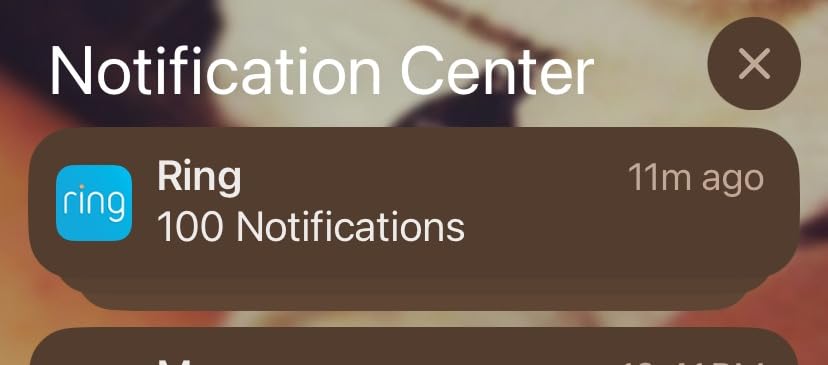
Turning off Ring notifications can help you manage the flood of alerts while keeping your home secure. Here’s how to turn off Ring notifications:
- Open the Ring app and tap the menu icon in the top right corner.
- Tap Devices and select your Ring device.
- Choose from the notification options: Ring Alerts, Motion Detection, Motion Alerts, and Motion Warning.
- Toggle the notifications switch OFF to disable Ring notifications.

To turn notifications back on, repeat the steps and toggle the switch ON.
Other Ways to Manage Ring Notifications
Besides disabling notifications directly in the Ring app, there are a few other methods to turn off or limit Ring notifications:
1. Set a Notification Schedule
If you just want to limit your Ring Doorbell notifications during specific hours, you can set a motion notification schedule. Here’s how to do it:
- Open the Ring app and select your device.
- Go to Device Settings, then Motion Settings.
- Tap Motion Schedule to set times when you don’t want to receive motion alerts.
- Adjust the schedule to disable alerts when you’re home or at night.
- Save your settings to activate the motion schedule.
2. Turn Off Ring Notification Sound
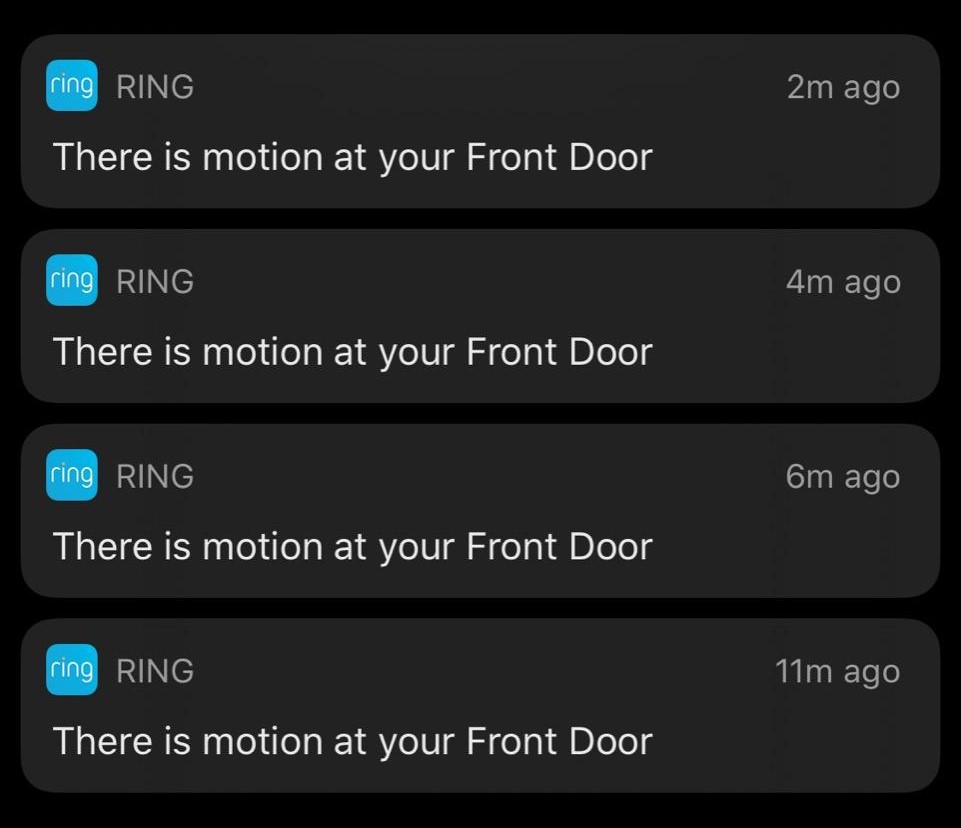
If the sound of alerts is disruptive, you can silence them while keeping notifications visible:
- Open the Ring app and choose the device you want to adjust.
- Navigate to Device Settings, then tap Alert Settings.
- Select App Notification Tones.
- Set the notification sounds to Off to disable audible alerts, allowing for visual notifications only.
3. Disable Phone Notifications
If you want to stop all Ring notifications on your phone, follow these steps:
For iPhone:
- Go to your iPhone’s Settings.
- Scroll down and tap Notifications.
- Find and tap the Ring app.
- Toggle off Allow Notifications.
For Android:
- Go to your phone’s Settings.
- Tap Apps & Notifications and then find Ring.
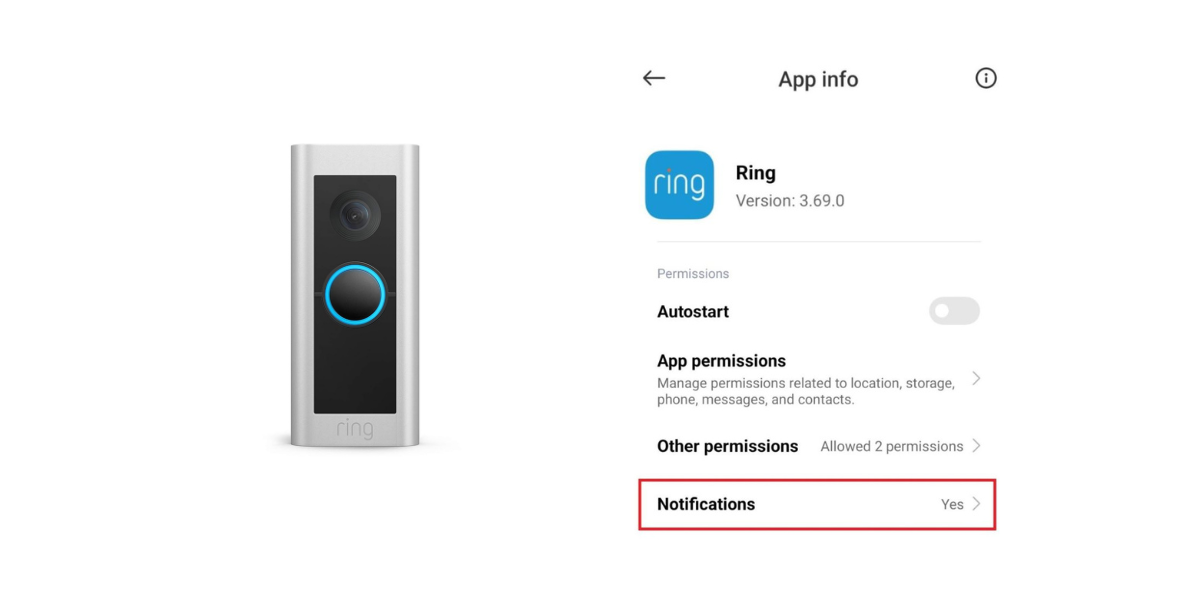
- Go to the Notifications option.

- Finally, toggle off the Show notifications switch.

When you want to turn on the notifications again, follow the above steps and toggle On the Show notifications switch.
4. Hit The Snooze Button
Need a temporary break from notifications? The Snooze option lets you pause alerts for a set period:
- Open the Ring app and find the Devices section.
- Select the device for which you want to temporarily disable alerts.
- Look for the Snooze option. It might be a bell icon or an option labeled as Motion Snooze.
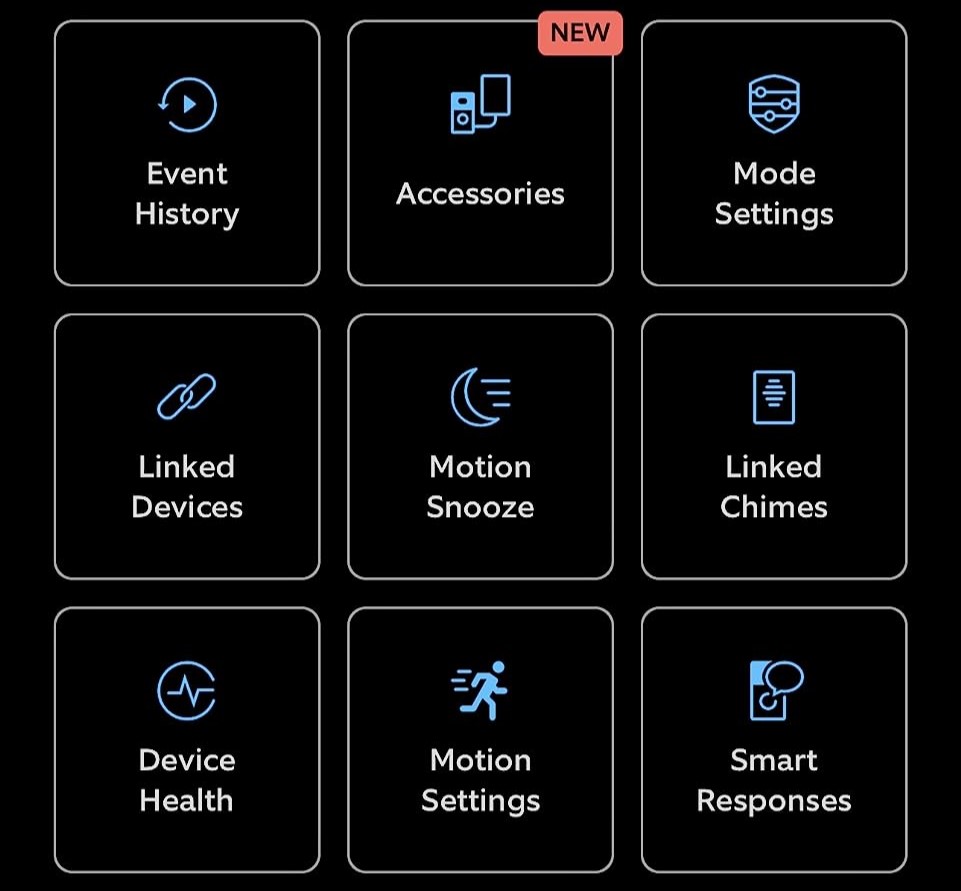
- Choose the duration for which you want to snooze the alerts.
- Confirm to activate snooze, pausing motion alerts for the selected time.
5. Enable ‘Do Not Disturb’ Mode on Your Phone
Silence all notifications, including Ring alerts, with your phone’s Do Not Disturb mode:
For iPhone:
- Open Control Center:
- On iPhone models with Face ID (iPhone X and later), swipe down from the top-right corner of the screen.
- On iPhone models with a Home button, swipe up from the bottom of the screen.
- Tap the crescent moon icon to turn on Do Not Disturb mode.
- The icon will turn blue when activated.
Alternatively:
- Open the Settings app.
- Scroll down and tap Focus, then select Do Not Disturb.
- You can customize which apps are allowed to bypass Do Not Disturb, or schedule it to activate automatically during specific times.
For Android:
- Swipe down from the top of the screen to open the Quick Settings menu.
- Look for the Do Not Disturb icon (often a circle with a minus sign or a bell with a slash) and tap it to activate.
Alternatively:
- Open the Settings app.
- Scroll down and tap Sound & Vibration or Notifications.
- Find and tap Do Not Disturb to customize its settings. You can allow certain apps to break through or schedule when Do Not Disturb turns on automatically.
Once enabled, Do Not Disturb will silence calls, alerts, and notifications, though you can allow exceptions depending on your customization.
Disabling Ring Notifications Made Easy!
The Ring system lets you control how and when you receive alerts, ensuring you’re informed without being overwhelmed. While you can simply disable Ring app notifications, here are some alternatives to try:
- If you dislike your doorbell sound, you can change your Ring Doorbell sound to something pleasant.
- Adjust your Ring Doorbell volume to reduce annoying notifications.
- Decrease or increase your Alexa Ring Doorbell volume to control when you hear alerts or avoid them.
Frequently Asked Questions
Can I turn off Ring notifications when home?
Ring alerts vs motion alerts: what is the difference?
Why does my Ring keep going off?
Why is my Ring not notifying me of motion?


Hashir
Hi, I’m Hashir, a tech enthusiast with a deep love for smart home innovations. My interest in technology has always been driven by the idea of making everyday life more streamlined and efficient. After years of experimenting with smart devices in my own home, I’ve made it my mission to share what I’ve learned with others. I focus on practical, easy-to-understand solutions that anyone can implement to enhance their home. Writing for JustSmarter allows me to connect with fellow tech lovers and help them take their first steps—or next steps—into the exciting world of smart homes.