Key Takeaways:
To increase your Echo’s door chime volume:
- Through the Alexa app:
- Open the Alexa app.
- Tap Devices > your Ring device > Settings (gear) icon.
- Turn OFF Doorbell Press Notification.
- Set up a louder custom notification sound.
- Manually:
- Press the + button.
- Or ask Alexa to set the volume to the specific level of your choice.
- Through the Ring app:
- Open the Ring app.
- Tap ≡ (menu icon) on the top right.
- Select Devices > your doorbell > Device Settings.
- Tap Alert Settings > App Alert Tones.
- Move the slider to increase the volume.
Ever missed a delivery because you couldn’t hear your Amazon Echo’s door chime? In this post, I’ll guide you through easy steps to amplify your Echo’s door chime volume. From basic volume adjustments to activating the Adaptive Volume feature and tweaking advanced settings, I’ve got you covered. Get ready to never miss a ring at your door again, all in just a few quick and easy steps.
How to Make Ring Doorbell Louder on Alexa?
To make your Ring Doorbell louder on Alexa, adjust the Echo’s volume directly, use the Alexa or Ring app to set louder custom notifications, enable Adaptive Volume, and explore advanced settings and routine-based volume changes.
1. Basic Volume Adjustment
Before diving into complex settings, start with the basics. Here’s how to manually adjust your Echo’s volume to ensure your door chime is loud enough to hear.
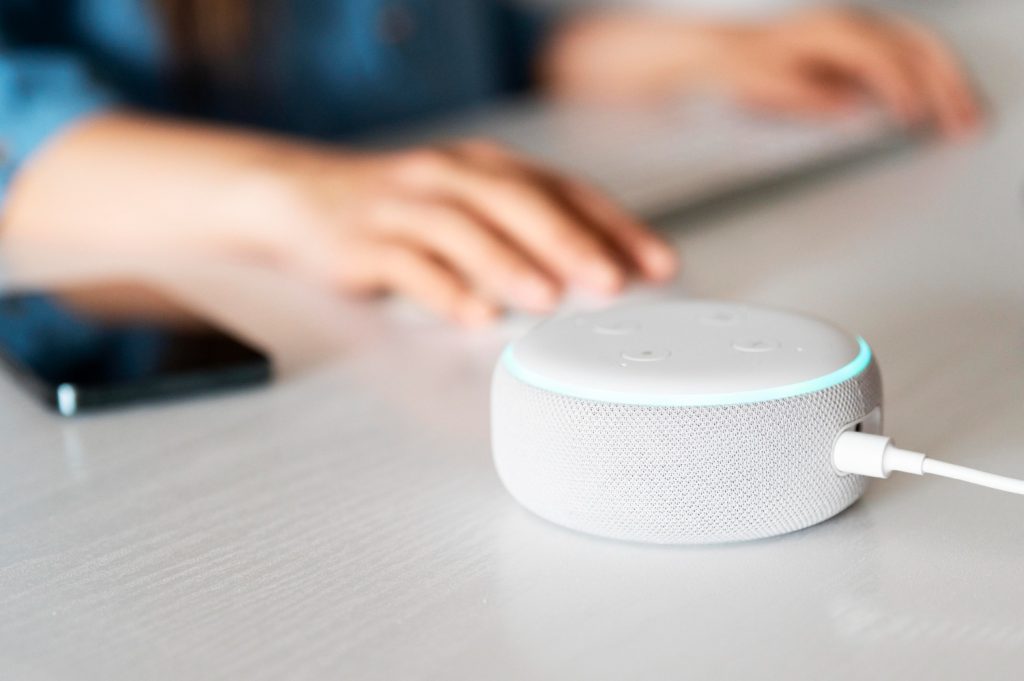
- Find the volume buttons on your Amazon Echo device. These are usually at the top or side of the device.
- Press the + button to increase the volume. You might want to test the door chime sound after each increment to find a suitable volume level.
- Alternatively, you can ask Alexa to increase the volume. Say something like, “Alexa, increase volume,” or specify a level, e.g., “Alexa, set volume to 6”.
2. Via the Ring App or Alexa App
To do this, you need to disable the default doorbell press notification and set up a custom notification sound, which can be louder. Here is how to do it:
- For the Alexa App:
- Open the Alexa app.
- Tap Devices.
- Select your Ring device.
- Tap the gearwheel icon for settings.
- Turn off ‘Doorbell Press Notification.’
- Set up a louder custom notification sound.
- For the Ring App:
- Open the Ring app.
- Tap the three lines on the top left for the menu.
- Select Devices and choose your doorbell.
- Go to Device Settings.
- Tap Alert Settings, then App Alert Tones.
- Increase the volume slider to make the ringtone louder.
3. Using Adaptive Volume
Adaptive Volume is a smart feature that adjusts your Echo’s volume based on ambient noise. Learn how to enable and effectively use this feature for a clearer door chime.
- Say, “Alexa, turn on Adaptive Volume.” This command activates the feature.
- After enabling, test the feature by creating a noisy environment and asking Alexa a question or triggering the door chime. Notice if Alexa’s response is louder than usual.
4. Advanced Settings for Door Chime Volume
For a more tailored experience, explore the advanced settings of your Echo. This section guides you through optimizing door chime volume to suit your specific needs and environment.
- Open the Alexa app on your smartphone or tablet.
- Go to Devices, select your Echo device, and then choose Sound Settings.
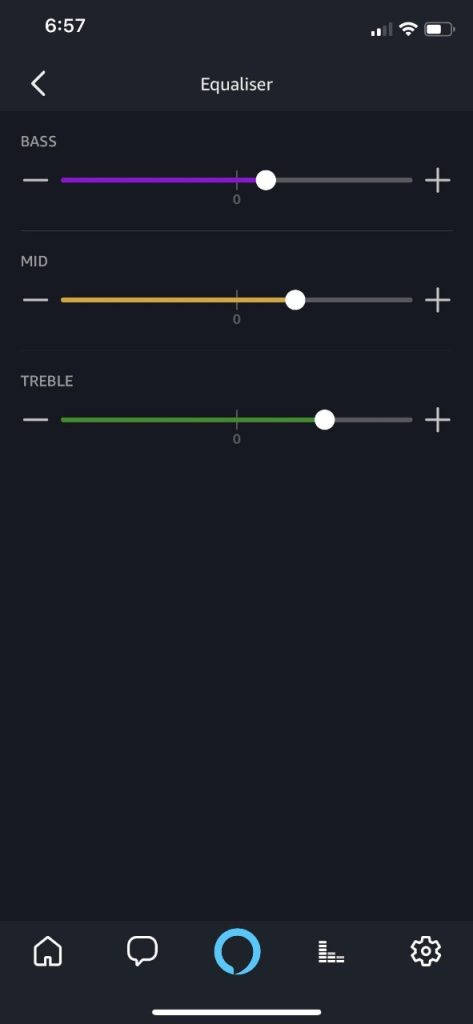
- Here, you can adjust the volume for alarms, timers, and notifications, which may include your door chime.
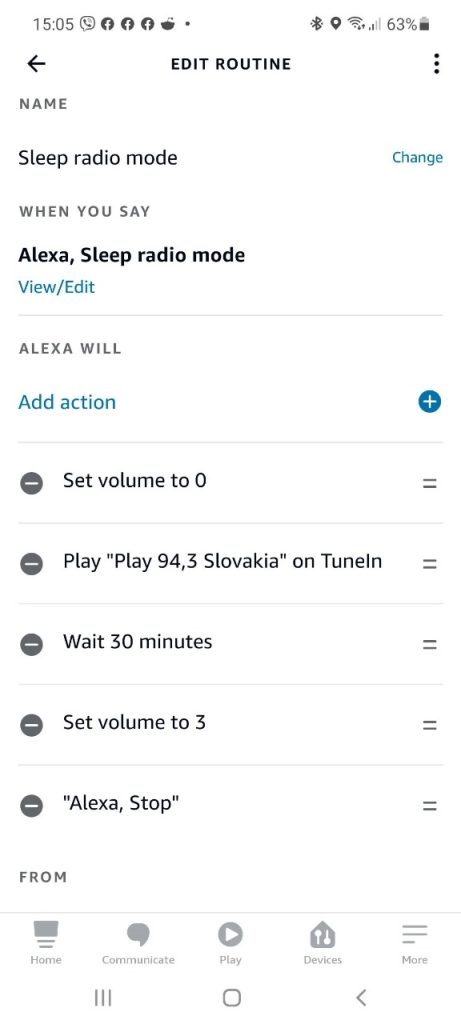
- Create a routine in the Alexa app that specifically increases the volume at certain times of the day or when a specific trigger, like your doorbell, is activated.
- Ensure your Echo device runs on the latest firmware, as updates can improve sound settings and features.
Why is My Echo’s Door Chime Volume So Low?
Your Amazon Echo’s door chime might be quiet for several reasons. Here’s a detailed look:
📢 Room Noise: If your Echo is in a noisy room, like a busy kitchen or near a TV, the door chime can be hard to hear. Loud noises from appliances or outside traffic can drown it out. Try moving your Echo to a quieter spot or reducing background noise when expecting visitors.
🔉 Volume Settings: The Echo’s volume might be low if you’ve recently used it for quiet activities like listening to soft music or late-night reading. To fix this, regularly check the volume. You can say, “Alexa, set the volume to 5,” or use the buttons on the device to make it louder.
🧲 Device Interference: Other gadgets close to your Echo, like a microwave or a wireless router, can interfere with the sound quality. These devices might create a sort of ‘noise’ that affects how well you can hear the Echo. Moving your Echo to a spot away from these devices can help.
🛠️ Echo’s Condition: Check your Echo for any signs of damage, like cracks or loose parts, which can affect sound quality. If it’s an older model, the speaker might not be as good as it used to be. In such cases, consider replacing it with a newer model for better sound.
Tips to Enhance Your Alexa Ring Doorbell Experience
To enhance your Alexa Ring Doorbell experience, place your Echo in a central location away from walls and noisy appliances, set up Routines for door chime alerts, and keep the software updated.
To enhance your Amazon Echo experience, consider these expert tips and troubleshooting techniques:
1. Place your Echo thoughtfully
The placement of your Echo device significantly impacts its sound quality and performance. For the best results, position your Echo in a central location within your home. Avoid placing it near walls or in corners, as these spots can muffle sound and reduce its clarity.
Keep the Echo away from noisy appliances like refrigerators or fans, which can interfere with sound quality and voice recognition. I’ve found that placing my Echo at a height that aligns with my speaking level—like on a kitchen counter or a living room shelf—delivers the best results. This setup not only enhances sound clarity but also improves Alexa’s ability to hear commands accurately.
2. Keep The Software Updated
Sometimes, the Echo might have software problems that affect the volume. Make sure your Echo is connected to your Wi-Fi network for automatic updates. You can also update your Echo device manually by following these quick steps:
- Open the Alexa app
- Navigate to Devices.
- Select your Echo device.
- Check if there are any updates available and download them.
Wrapping Up
So, it is that easy to increase Alexa Ring volume! You should also try the Adaptive Volume feature and experience with Echo’s audio settings for a better experience. To make sure that you always hear your Ring Doorbell well, here’s more you can do:
- Learn how to change the Ring Doorbell sound.
- Explore how a Ring Chime can make your doorbell more effective.
- Find out why your Ring Doorbell may not be chiming and how to fix it.
Frequently Asked Questions
Can I control the volume of my Echo’s door chime separately from other sounds?
Will the Adaptive Volume feature affect my music or call volume on Echo?
Can I use voice commands to adjust specific sound settings like bass or treble on my Echo?


Hashir
Hi, I’m Hashir, a tech enthusiast with a deep love for smart home innovations. My interest in technology has always been driven by the idea of making everyday life more streamlined and efficient. After years of experimenting with smart devices in my own home, I’ve made it my mission to share what I’ve learned with others. I focus on practical, easy-to-understand solutions that anyone can implement to enhance their home. Writing for JustSmarter allows me to connect with fellow tech lovers and help them take their first steps—or next steps—into the exciting world of smart homes.