

Key Takeaways
If your Ring Doorbell disappeared from app:
- Make sure you’re logged into the right Ring account.
- Update your Ring App and restart it.
- Check your Doorbell’s Power & Wi-Fi connection.
- Hold the device setup button for 20 seconds to reboot.
- Confirm you’re still the device owner in the app.
- If needed, re-add and set up the device again in the app.
- Contact Ring support if nothing else works.
Has your Ring Doorbell disappeared from the app? It can happen due to a number of reasons and you can easily fix it. Below, I’ve shared why it happens and what you can do to get your Ring device back up and running.
What to Do If Your Ring Doorbell Disappeared From App?
Below, I’ve shared some easy fixes to get your Ring Doorbell appear again in the Ring app.
1. 🔄 Update the Ring App
Software bugs or outdated Ring app versions can cause devices to disappear. So, make sure your app is updated.
To update the Ring app, follow these steps:
For iOS (iPhone/iPad):
- Open the App Store.
- Search for the Ring app in the search bar.
- If you see an Update button next to the Ring app, tap it to start updating.
- If it says Open, your app is already up-to-date.

For Android:
- Open the Google Play Store.
- Tap the profile icon in the top right and select Manage apps & device.
- Under Updates available, find the Ring app and tap Update.
- If it says Open, your Ring app is up-to-date.
2.🧹 Clear App Cache
Cache is like a storage space where your Ring app saves info to run faster. But sometimes, it gets cluttered with old or incorrect data, causing issues.
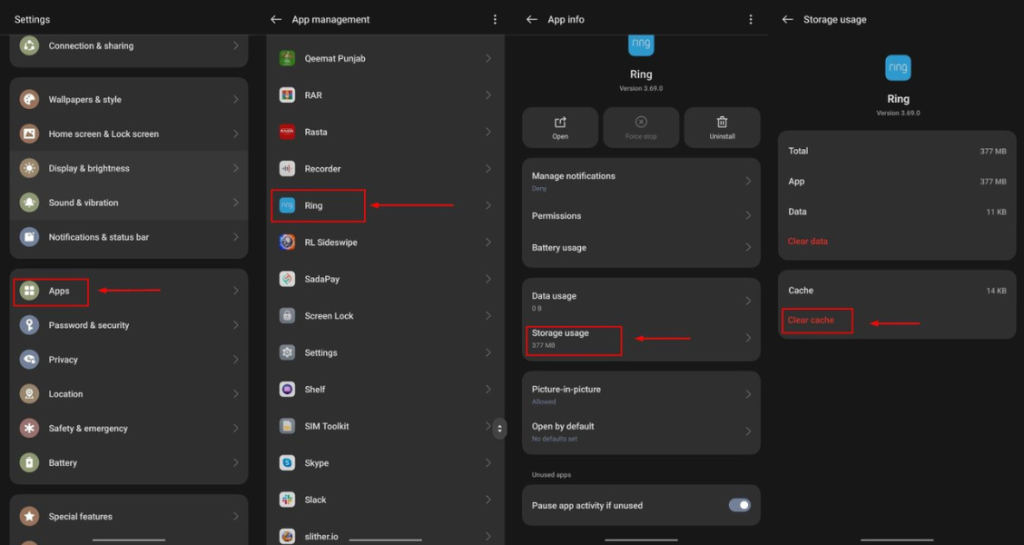
To clear the Ring app cache, follow these steps:
For Android:
- Open Settings on your phone.
- Go to Apps or App Management.
- Find and select the Ring app.
- Tap Storage or Storage usage.
- Tap Clear Cache.
For iPhone (iOS):
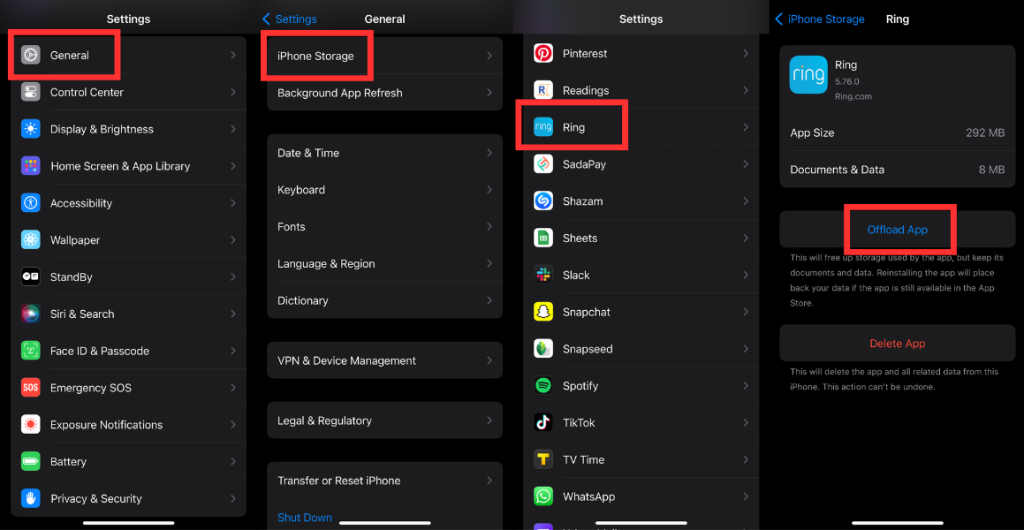
iPhones don’t have a direct cache-clearing option. But you can offload the app to clear the cache. Here’s how:
To offload the Ring app on your iPhone, follow these steps:
- Open the Settings app and go to General.
- Scroll down and find iPhone Storage.
- Scroll through the list of apps and tap Ring.
- Tap Offload App and confirm.
3. 📱 Reboot Your Smartphone
Turning your phone off and on can refresh your phone and fix temporary minor app glitches causing your devices to disappear from the list.
To reboot your smartphone, follow these steps:
For Android:
- Press and hold the Power button.
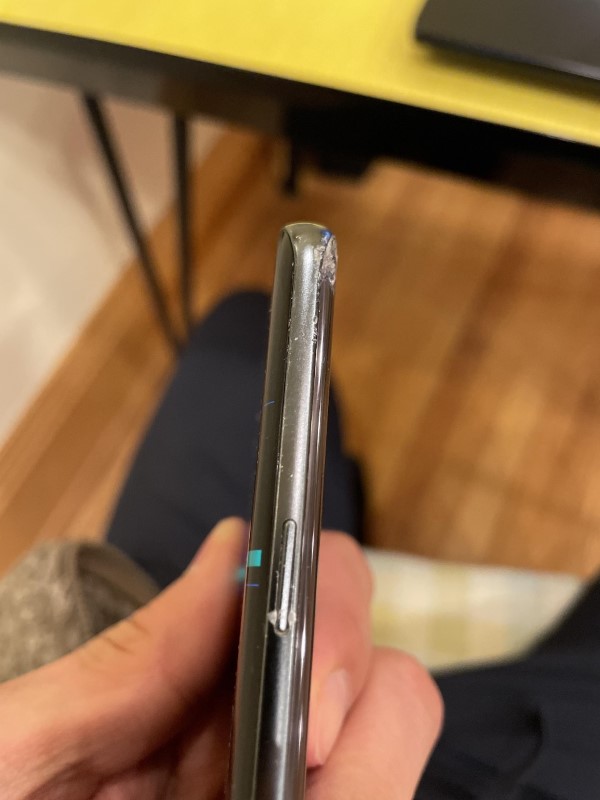
- Select Restart from the menu that appears.
For iPhone:
- Press and hold the Side button and Volume button together.
- Slide the Power off slider to turn off the phone.
- After it turns off, press and hold the Side button to turn it back on.
Once your phone is back on, open the Ring app again and check if your device is showing up now.
4. 📶 Make Your Wi-Fi Signal Stronger
A strong Wi-Fi or Bluetooth connection is crucial for your Ring device to stay linked to the app. If the signal is weak or there’s interference, the device may disappear. To make your Wi-Fi signal stronger, try these tips:
- 📡 Move Your Router: Place it in a central, elevated location for better coverage.
- 🚫 Reduce Interference: Keep the router away from other electronic devices, like microwaves or cordless phones.
- 📶 Upgrade Router: Use a modern router with stronger range and dual-band support (2.4GHz and 5GHz).
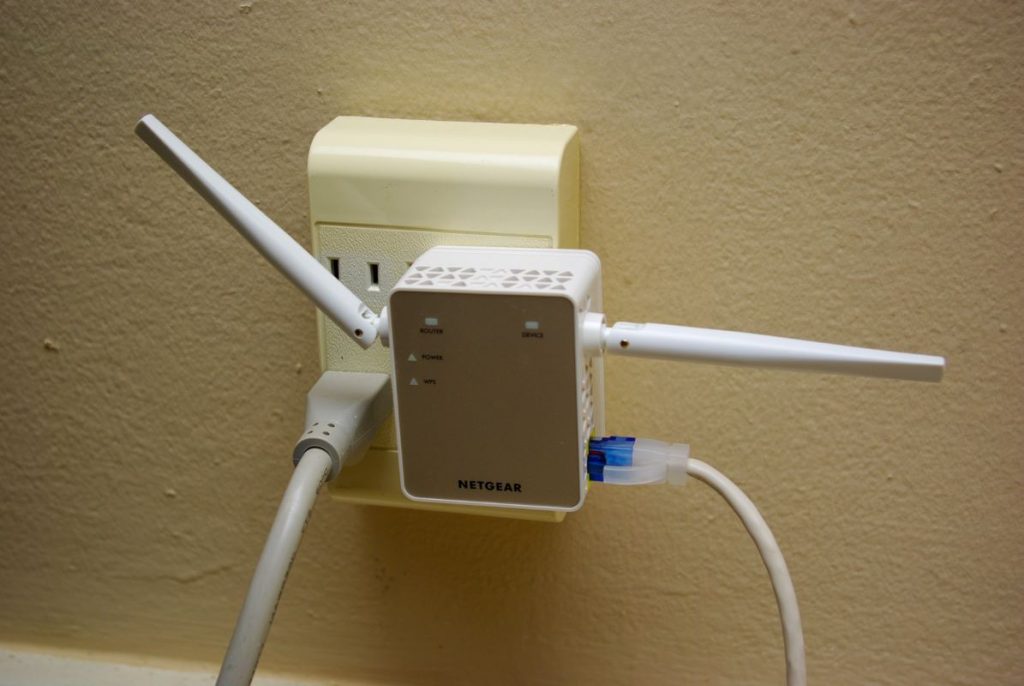
- 📢 Use a Wi-Fi Extender: Add extenders or mesh systems to increase coverage in larger areas.
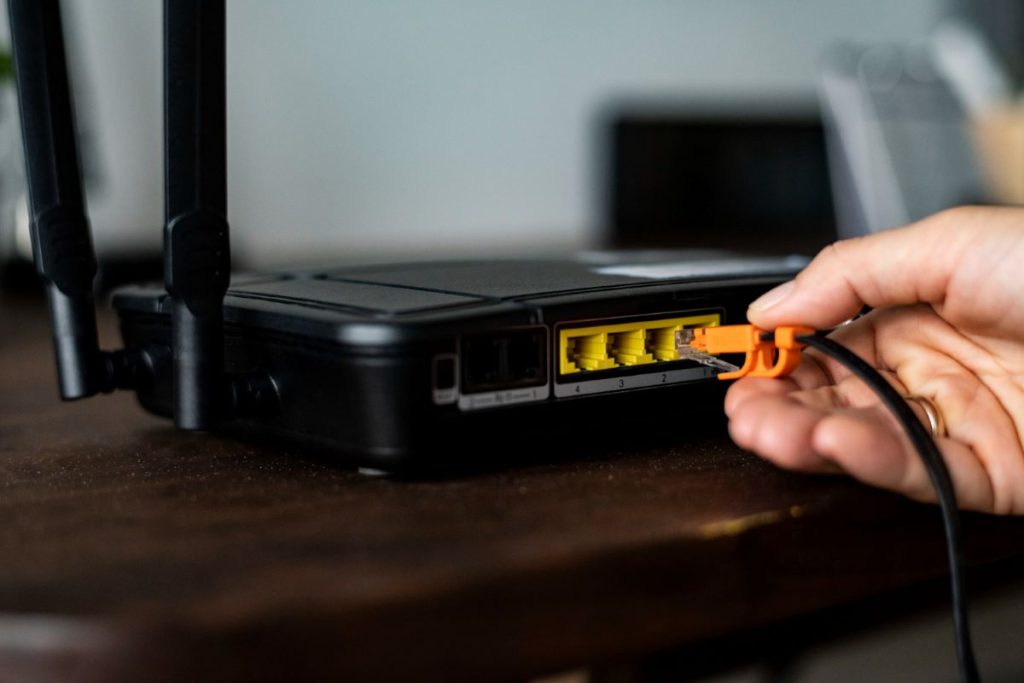
- 🔄 Reboot Your Router: Restarting it can improve signal strength and clear temporary issues.
- 🔌Unplug Your Router: Disconnect your router, wait 30 seconds, then plug it back in to refresh its connection and resolve any issues.
5. 🔑 Make Sure You’re Using the Right Account
If you have multiple Ring accounts or changed your email, you might be logged into the wrong one. This can make your devices disappear from the list.
Here’s how to check:
- Open the Ring App.
- Tap the menu (☰) in the top left corner.
- Select Account Settings from the menu.
- Review your account details, including email, subscription status, and linked devices.

If you’re logged in to the wrong account, log out. Then, log back in with the email address you used to set up your Ring device and see if the Ring Doorbell appears in your devices.
6. 📜 Check Your Subscription Status
If you’ve signed up for extra features with a Ring Protect Plan, you need to make sure it’s still active. Here’s how to check your Ring subscription status:
- Open the Ring App.
- Tap the menu (☰) in the top left corner.
- Select Control Center > Account.
- Tap Manage Plan to view your current subscription status and details.
This will show you whether your Ring Protect Plan is active and when it renews. You’ll also see if there’s been a problem with your payment.

If your plan has expired or there’s a payment issue, follow the steps in the app to update your payment details or renew your plan.
7. 🔒 Change Your Password for Extra Security
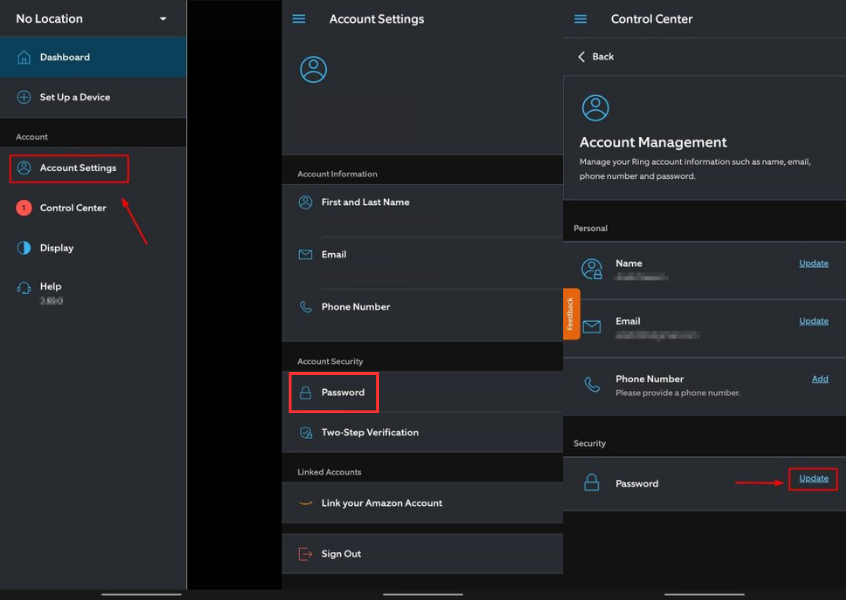
If you’re worried someone else might have gotten into your account, or if things just don’t seem right, changing your password is a good idea. Here’s how to do it:
- Open the Ring App.
- Tap the menu (☰) in the top left corner.
- Select Account Settings.
- Tap Password.
- Tap Update next to Password.
- Enter your current password, then create and confirm a new, strong password.
You can also turn on Two-Factor Authentication for your Ring account to further increase its security. Here’s how to turn on Two-Factor Authentication (2FA) on your Ring account:
- Open the Ring App.
- Tap the menu (☰) in the top left corner.
- Select Account Settings.
- Tap Two-Factor Authentication under the Account Security section.
- Follow the prompts to enter your phone number and enable 2FA.

Now, you’ll receive a verification code via text every time you log in. This helps keep your account secure from unauthorized access.
8. ⚡ Power Cycle
If your Ring Doorbell isn’t showing on the dashboard, it may be due to power issues or just because it needs a reset. So, give it a break by doing a quick reset.
Here’s how to do it:
- Find the power source for your Ring device—either battery or plug. Disconnect it gently.
- Wait about a minute (or longer if you can) to let the device rest.
- Reconnect the power. For a battery, reinsert it; for a plug, plug it back into the wall.
9. 🔍 Check for Physical Damage
To ensure your Ring device is functioning properly, it’s important to check for any physical damage. Here’s how to check your Ring Doorbell or Camera for physical damage:
- 🔍 Inspect the Device: Look for cracks, dents, or other visible signs of damage on the body or lens.
- 🔌 Check Wiring/Connections: If wired, ensure all connections are secure and free of wear or fraying.
- 🛠 Examine Mounting Brackets: Ensure the device is firmly attached and hasn’t shifted from its original position.
- 🎛 Test Buttons & Features: Press the Doorbell button or test the Camera’s functionality to ensure everything is responsive.
If you notice any damage, consider repairs or replacement to maintain proper operation. But, it’s best not to try fixing it yourself as these devices are pretty delicate on the inside.
10. 🏭 Factory Reset
⚠️ A factory reset will erase all settings and you’ll need to set it up again from scratch.
If your Ring Doorbell is still not showing up in the app, it might need to start over from scratch. Here’s how to factory reset your Ring device:
- Find the Reset Button. On most Ring devices, it’s a small button usually on the back or bottom.
- Press and hold down the Reset button for 15–20 seconds until the light starts flashing.
- Release the button and the device will reset.
- Open the Ring app and follow the setup instructions to reconnect your device.
Why My Ring Doorbell Disappeared From App?
Your Ring Doorbell may disappear from the app due to several reasons:
- 📱 Software Glitches: Outdated apps or phone software can cause device issues.
- 🌐 Wi-Fi Connectivity Issues: Weak or disrupted internet connections may cause the doorbell to go offline.
- 🔑 Account Problems: Logging into the wrong account or subscription issues can cause devices to vanish.
- 🔋 Power Issues: Power loss or battery problems may lead to the doorbell going offline.
- ⚙️ Device Malfunction: Hardware issues or firmware bugs can cause the doorbell to disappear from the app.
Sync Your Ring Devices Right!
If your Ring Camera or Doorbell disappears from the app, updating the app and clearing the cache often solves the problem. Strengthen your Wi-Fi signal, check your account details, and if needed, try a quick reset to get things working again.
Here are more posts you may find helpful:
- If you Ring Doorbell battery dies quickly, adjust motion settings, limit live view, disable power-heavy features, and update firmware.
- If your Ring Doorbell is in direct sunlight, it can overheat, leading to battery drain, material degradation, sensor damage, and a reduced lifespan.
- To prevent Ring Doorbell WiFi jamming, enable two-factor authentication, update firmware, separate IoT networks, and use local storage or a wired connection.
Frequently Asked Questions
Why is my Ring shared device not showing up?
How do I check if my Ring device is online if it’s not showing in the app?
What should I do if Ring shared users not working properly?
How can I fix the issue of my Ring Alarm not showing in app?
Why does Ring need my location?
Why is my Ring device not connecting?


Hashir
Hi, I’m Hashir, a tech enthusiast with a deep love for smart home innovations. My interest in technology has always been driven by the idea of making everyday life more streamlined and efficient. After years of experimenting with smart devices in my own home, I’ve made it my mission to share what I’ve learned with others. I focus on practical, easy-to-understand solutions that anyone can implement to enhance their home. Writing for JustSmarter allows me to connect with fellow tech lovers and help them take their first steps—or next steps—into the exciting world of smart homes.