Key Takeaways:
- Ring cameras don’t record 24/7 – they start with motion or live view.
- Snapshot Capture offers periodic images for continuous overview.
- Video length can be extended for Ring Protect subscribers.
- You can manually activate the built-in siren via the app.
Having written many Ring guides and interacting with many fellow Ring Camera users, I have encountered many queries that keep repeating. To answer them once and for all, I have put together this FAQ guide. Scroll down and explore expert answers to the most commonly asked Ring Indoor Camera questions.
1. Does The Ring Indoor Camera Record All The Time?
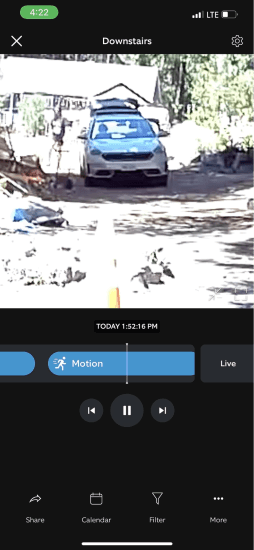
No, the Ring Indoor camera doesn’t record all the time. In fact, no Ring camera can record 24/7. It only records when it detects motion or when you access Live View. You can use the Snapshot feature for more frequent footage.
As a user, I also wish there was a Ring Indoor Camera that could record 24/7, but there is none so far. No Ring camera (including the Indoor cam) can record all the time. Instead, it starts recording when it detects motion in the specified motion zone. Plus, this recording, by default, only lasts up to 120 seconds.
Other than that, it records when you see the Live View for as long as the Live View lasts. If you are a Ring Protect Plan subscriber, the closest you can get to continuous surveillance is the Snapshot feature. It captures a still frame every few minutes and stores it in the cloud, which you can view using the Ring app. You can also adjust this frequency (that is, the interval between each Snapshot) in the Ring app.
Here’s how to enable the Snapshot feature:
- Open the Ring app and navigate to Menu ☰ > Devices.
- Select your Indoor Camera.
- Tap Device Settings > Snapshot Capture.
- Toggle On the Snapshot Capture switch.
- Select the desired Snapshot Frequency time.
- Tap Save.
To view the Snapshots your camera has taken, go to Live View in the Ring app and scroll left.
2. Does The Ring Indoor Camera Rotate?
No, the Ring Indoor Camera itself can’t rotate. But you can change its video orientation in the Ring app. Or else, you could mount it flexibly so it automatically produces videos in the orientation you want, though this can be tricky and might not be feasible.
Basically, the Ring Indoor Camera does not have a built-in feature to physically rotate or pan its lens automatically. However, you could mount it in various positions, such as on a table, wall, or even the ceiling, so that it captures footage in your desired orientation.
But what if you have mounted it wrong? Then, you can simply rotate the video feed to your desired orientation in the Ring app. To adjust the video orientation in the Ring app:
- Open the Ring app and tap the Menu icon.
- Navigate to Devices and select your Indoor Cam.
- Go into Device Settings, then Video Settings.
- Find the Rotate Video option and toggle it to flip the video orientation.
It’s important to note that after adjusting the video orientation, you may need to reconfigure your motion zones due to the change in the camera’s view.

3. Can You Use Ring Indoor Camera Outside?
Yes, you can use Ring Indoor Camera outside. However, since it is made for indoor use and lacks outdoor weatherproofing, I recommend against it. Outside, the Indoor cam will be prone to weather damage risks and can potentially void the warranty.
The Ring Indoor Camera is designed specifically for indoor use and lacks the weatherproofing necessary for outdoor conditions. Exposing it to the elements, like rain, humidity, and extreme temperatures could damage the device.
If you want something to keep an eye around your house, you could get the Stick Up Cam, Floodlight Cam, or Spotlight Cam, which are built to withstand outdoor conditions.
However, it is technically possible to use the Ring Indoor Camera outdoors. To protect it, place it in a sheltered location, like under an eave or inside a covered porch area, where it’s protected from direct sunlight, rain, and exposure to weather.
Still, I don’t recommend it because being outdoors makes your Indoor Cam more susceptible to damage and could even void its warranty. Plus, ensuring a stable wired power source and Wi-Fi connection can also be challenging outdoors.
4. Does Ring Indoor Camera Record Sound?
Yes, the Ring Indoor Camera does record sound during video recording and in the Live View mode. For privacy, you can also disable the audio recording in the app settings.
By default, the Ring Indoor Camera records audio (along with video) when it starts recording video upon detecting motion and when you start Live View. If you’re concerned about privacy or simply prefer not to record audio, you can disable it using the Ring app. Here’s how to do it:
- Open the Ring app and navigate to Menu (top right) > Devices.
- Select your Ring Indoor Camera.
- Tap Device Settings > Privacy Settings.
- Toggle OFF Audio Streaming and Recording.
This will turn off both audio streaming and recording, meaning you won’t be able to listen in or record audio through the camera.
5. Is There A Ring Indoor Cam Siren?
Yes, the Ring Indoor Camera has a built-in siren that you can manually activate via the Ring app. This allows you to deter potential intruders with the sound of the siren when necessary.
While there is a built-in siren feature in Ring Indoor Camera, you must activate it manually through the Ring app to set it off. Unfortunately, there is no way to automatically trigger it. Still, when you feel someone is inside your house, you can set it off manually to scare them off– adding a layer of security to your house.
On top of that, Ring has introduced updates allowing you to Ring Alarm Base Station sirens with the siren on Ring cameras, including the Indoor Camera. This means if your Ring Alarm is triggered, the sirens on your Ring cameras will also go off, amplifying the alert.
6. What Does Blue Light On Ring Indoor Camera Mean?
The blue light on a Ring Indoor Camera indicates its operational status. Solid: startup, Slow blink: setup, Pulsing: two-way talk, Blink+on: firmware update, On 5s: setup success, Solid during recording.

The blue light on a Ring Indoor Camera serves as an indicator of the camera’s current status and activities. Here’s a breakdown of what different blue light patterns mean:
🔵 Solid Blue Light: This indicates that the camera is starting up. A solid blue light appears during the initial power-up process.
🔄 Slow Blinking Blue Light: When you see a slow blinking blue light, it means the camera is in setup mode. This mode is activated when you’re first setting up the camera or if it’s been reset and is ready to connect to your Wi-Fi network.
🌟 Blue Light with Slow Pulsing: A very slow, pulsing blue light signifies that the two-way talk/speaker function is enabled. This allows you to communicate through the camera using its built-in speaker and microphone.
⏳ Blue Light Blinks Then Stays On for Two Seconds: This pattern occurs during a firmware update. The camera automatically updates its firmware to the latest version when available, and this light pattern indicates that the update is in progress.
👍 Blue Light Blinks On for Five Seconds: A successful setup of the camera is indicated by a blue light that blinks on for five seconds. This shows that the camera has been successfully connected to your Wi-Fi network and is ready to use.
🎥 Solid Blue Light (During Recording): A solid blue light also indicates that the camera is currently recording video. This can happen during live view or when the camera detects motion and starts recording automatically.
7. What Is The Difference Between Indoor Cam And Stick-Up Cam?
The main difference is that Indoor Cams are designed for use inside and typically plug into wall outlets, while Stick-Up Cams can be used both indoors and outdoors and have more flexible mounting options.
The Ring Indoor Cam and Stick-Up Cam cater to different needs and environments. Here’s a breakdown of the differences between them:
Ring Indoor Cam VS Ring Stick-Up Cam: A Quick Comparison
| Feature | Ring Indoor Cam | Ring Stick-Up Cam |
|---|---|---|
| Intended Use and Location | Designed exclusively for indoor use. | Usable both indoors and outdoors |
| Power Options | Powered by a standard power outlet. | Multiple options: electrical outlet, battery, or solar panel. |
| Motion Detection | Customizable with person detection, no adjustable sensitivity. | Adjustable motion detection with customizable sensitivity and monitoring areas. |
| Field of View | Slightly larger field of view. | Slightly smaller field of view. |
| Design and Dimensions | Compact and discreet, easier to blend indoors. | Larger and more versatile, suitable for both environments. |
| Price | Generally less expensive. | Higher price due to outdoor capability and versatility. |
📍 Intended Use and Location:
The Indoor Cam is your go-to for indoor surveillance. It’s built to keep an eye on the interiors of your home. On the flip side, the Stick-Up Cam offers more versatility because you can use it both indoors and outdoors. If you’re looking to cover areas like your backyard or porch, this is the camera for you.
🔌 Power Options:
The indoor Cam needs to be near a power outlet, which is fine for most indoor settings. The Stick-Up Cam is more adaptable; you can plug it in, use a battery pack, or even hook it up to a Ring Solar Panel for continuous power. This makes it a better option if you prefer a setup that can change locations or you don’t have easy access to outlets outdoors.
🚶 Motion Detection:
Both cameras offer robust motion detection, but the Stick-Up Cam goes a step further by letting you tweak the sensitivity and specify exact areas to monitor. This customization can be a real advantage if you’re dealing with a lot of background movement like trees or traffic. The Indoor Cam is smart too—it highlights human presence, making it great for alerts that matter, though it lacks the sensitivity adjustments.
👁️ Field of View:
Both models offer a wide viewing angle, but the Indoor Cam gives you a bit more breadth. This might seem minor, but it can make a significant difference if you’re trying to cover a larger room with a single camera.
📦 Design and Dimensions:
The Indoor Cam’s compact size makes it incredibly discreet and easy to mount in tight spots around your house without drawing attention. The Stick-Up Cam is a bit bulkier, which is something to consider if aesthetics and space are concerns for you.
💲 Price:
You’ll pay more for the Stick-Up Cam, but that extra cost brings the flexibility of outdoor use and more power options. If your surveillance needs are strictly indoors, the Indoor Cam will likely meet your needs at a lower cost.
In my experience, the choice boils down to where and how you plan to use the camera. For strictly indoor monitoring, the Indoor Cam is sufficient and cost-effective. If you foresee a need to monitor outdoor spaces or want a more flexible installation, the Stick-Up Cam is the better bet. Always consider your specific needs and setup environment before deciding.
8. Does The Ring Indoor Camera Have Night Vision?
Yes, the Ring Indoor Camera does have night vision. It uses infrared LEDs to provide clear video in low-light conditions, making it effective for monitoring your home even in complete darkness.
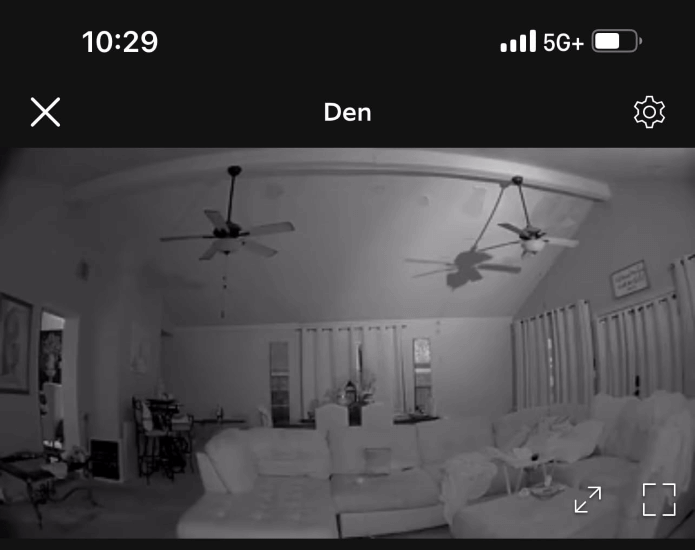
The Ring Indoor Camera comes equipped with night vision, using infrared LEDs to light up a room in a way that’s invisible to the human eye. This setup is great because intruders won’t notice they’re being recorded. From my experience, the camera captures clean, clear video in black and white under these conditions.
However, you should keep in mind that the quality of the night vision decreases if objects are more than three meters away. Despite this, the camera’s motion sensor does a solid job at keeping your space secure at night.
Ring also offers a Color Night Vision feature, which you can toggle on through the Ring app. I’ve found this to be particularly useful in improving video clarity and motion detection in dim lighting conditions.
It adds a hint of color to the footage, which can make a big difference in how you interpret what you see. If you’re setting up your home security system, consider experimenting with this feature to see what works best for your needs.

9. Can I Talk Through My Ring Indoor Camera?
Yes, you can talk through your Ring Indoor Camera. It features two-way audio, allowing you to listen and speak to anyone in the room using the camera’s built-in speaker and microphone through the Ring app.
This feature allows you to communicate with people in the room where the camera is placed, similar to making a video call. Here’s how it works:
- Select ‘Live View’ in the Ring app to open the camera, or use an Amazon Echo Show (if connected) and ask Alexa to show the camera feed.
- Check if the microphone is muted in the app.
- Look for a microphone icon with a line through it and tap to unmute, enabling two-way communication.
- With the microphone enabled, speak into your device.
- Your voice will be transmitted through the camera’s speaker, allowing you to communicate through the camera.
10. Can The Ring Indoor Camera Trigger The Ring Alarm?
No. The Ring Indoor Camera itself does not directly trigger the Ring Alarm. However, it can work alongside the Ring Alarm system by providing video verification when the alarm is triggered by Ring Contact Sensors or Motion Detectors.
Basically, the Ring Indoor Camera can’t directly trigger the Ring Alarm system when it detects motion. This means that even if your indoor camera notices something moving, it won’t automatically set off your Ring Alarm.
However, if the alarm is set off by the Contact Sensor/Motion Detector or if you set it off manually through the app, your Ring Indoor camera (if it is integrated with the Alarm System) will start recording.
All You Know Now About Ring Indoor Cam
The Ring Indoor Cam enhances your home security by allowing you to monitor activities inside your home remotely, helping deter intruders and keeping you connected to your home even when you are away. I hope this post will help you understand your Ring Indoor Cam’s capabilities better.
Here are more articles you may find interesting:
- Can You Change Ring Doorbell Sound? Yes – Here’s How!
- How to Fix Ring Motion Schedule Not Working?
- How to Remove Ring Contact Sensor (Motion Sensor)?
- Ring Chime Not Ringing Or Ring Doorbell Not Ringing On Echo?
Frequently Asked Questions
Is it worth buying a Ring indoor camera?
Why is my Ring camera making noise?
Can a Ring camera record through glass or window?
What are the best uses of Ring indoor cameras?