Key Takeaways:
- Check if your WiFi is working by testing the internet on another device.
- Move your router to a central location if the signal is weak near your Ring device.
- Make sure your Ring device is compatible with your router’s WiFi band.
- Restart your router and modem to fix any temporary glitches.
If your Ring Doorbell disconnected from WiFi, it won’t be able to send you important alerts or show Live View – all of which can compromise your home security. There could be several reasons why this happens, and in this post, I have explained them all along with easy solutions. So, read on and discover simple, actionable solutions to get your Ring Doorbell back online.
Why My Ring Doorbell Disconnected from WiFi And Won’t Reconnect?
Your Ring Doorbell may disconnect from Wi-Fi and fail to reconnect due to weak Wi-Fi, changed network settings, software or hardware issues, or power issues.
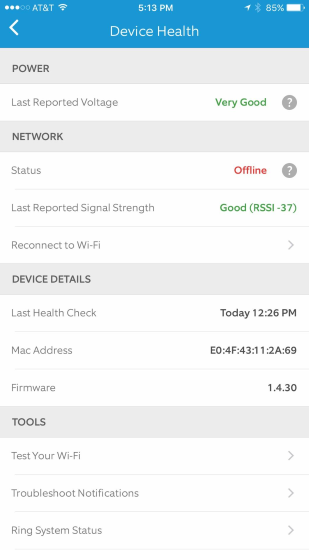
There are a number of possible reasons why your Ring Doorbell disconnected from WiFi and won’t reconnect:
- Weak WiFi Signal: The Ring Doorbell might be too far from your router, or there are obstacles (like walls) that weaken the signal.
- WiFi Network Changes: If you’ve recently changed your WiFi name (SSID) or password, your Ring Doorbell won’t connect until you update the settings in the Ring app.
- Software Issues: The Ring Doorbell or your router might need a firmware update, or there could be a glitch requiring a restart of the device or router.
- Power Issues: If your Ring Doorbell is battery-powered, the battery might be low or dead. If it’s wired, there could be a power interruption.
- Technical Failures: Rarely, there could be a hardware issue with the Ring Doorbell or your WiFi router.
What To Do If Ring Camera Keeps Disconnecting From WiFi?
If your Ring camera keeps disconnecting from WiFi, check WiFi strength, reset the camera, update WiFi settings, ensure a good and stable power supply, and update Ring firmware.
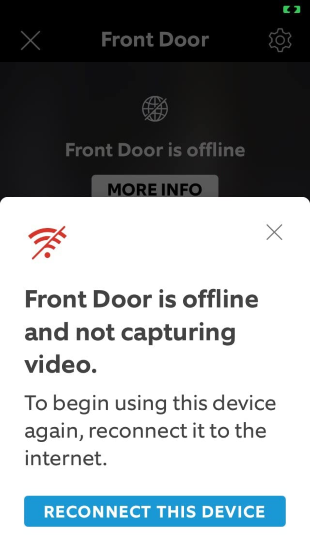
When your Ring is offline but WiFi is working, it means something is preventing your Ring device some making a stable connection with your Wi-Fi. There could be several other reasons too. Let’s explore them all in detail and see what you can do:
1. Check Your Wi-Fi Connectivity
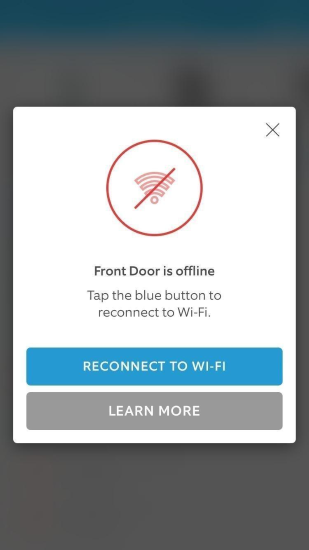
First off, let’s make sure your Wi-Fi itself is up and running. Grab another device, like your smartphone or laptop, and try to connect to the internet. If you still can’t connect it, the issue could be with your internet service provider.
But before you reach out to them, double-check your Wi-Fi password. It’s easy to forget if you’ve set it once and never thought about it again. And if you’re still using the default password, you might find it printed on your router.
Sometimes, the simplest solution is to reboot your router. That is what I do, and it resolves the issue immediately. Here is how to do it:
- Turn it off.
- Wait for a minute.
- Then turn it back on.
- You’d be surprised how often this fixes things.
2. Improve Your Wi-Fi Strength
If your internet works fine on other devices, but your Ring device struggles to stay connected, it can be a signal strength issue. Check the distance between your router and Ring device. If it’s far away or there are a lot of obstructions like walls in between, your signal will not be strong enough.
Move your router closer to your Ring device or invest in a Wi-Fi extender. These handy gadgets act like a bridge and boost your Wi-Fi signal further into your home.
3. Update Your Wi-Fi Settings in the Ring App
Sometimes, you change your Wi-Fi network or password and forget to update your Ring device with the new details. Here’s how to update your Wi-Fi settings:
- Open the Ring app and tap the menu icon (three lines) in the top left corner.
- Select Devices and choose the doorbell or camera that’s offline.
- Tap Device Health.
- Select Change Network under Network.
- Follow the in-app instructions to update your Wi-Fi settings.
4. Ensure Compatibility with Your Router
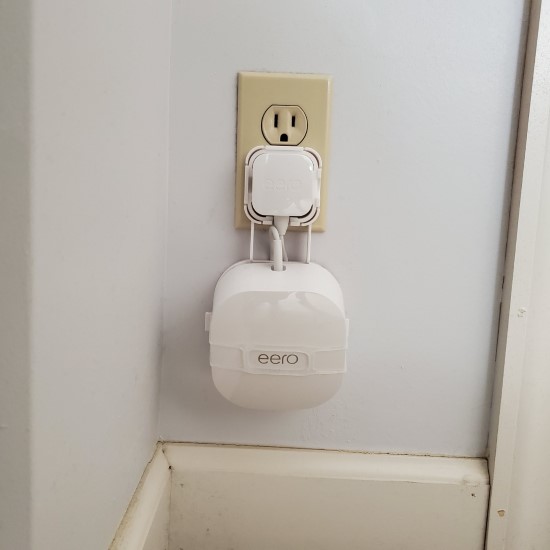
If you are using a dual-band router, your Ring device needs to be on the right frequency to work smoothly. Although some devices work better on the 5GHz band, the Ring prefers the 2.4GHz band for a more reliable connection. Switching bands is easy by following these steps:
- Go to Device Health.
- Open the Ring app.
- Change your WiFi network to the one that suits your device best.
5. Reset Your Router
Sometimes, the problem lies with your router. This is the easiest fix that I have tried. Simply turn your router and modem off and then back on after a short wait. This reboot can clear out any temporary glitches in your router that are disrupting your devices.
6. VPN Conflicts
A VPN adds a layer of security to your internet connection, but it can also interfere with how your smart devices, like your Ring camera, connect to the internet. This is especially true if the VPN is installed on your router. To fix this, check your VPN settings to ensure they’re smart device-friendly. You might need to turn off certain high-security features that could prevent your Ring device from connecting.
7. Address Power Issues
📡 If you’re using a wireless Ring device and it keeps disconnecting, the battery could be running low. Here’s a simple fix: charge the battery. This often solves the problem and gets your device back online. Just connect your Ring device to its charger and wait until it’s fully charged. You’ll likely see an improvement in connectivity afterward.
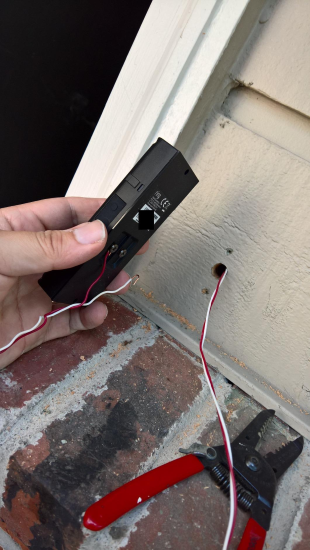
🔌 But if you have got your wired Ring Doorbell offline, a different approach is needed. First, check if there’s been a recent power outage in your area or if your device’s power source is stable. Power interruptions can cause your Ring device to lose its WiFi connection.
If you suspect a power issue, make sure the power source to your Ring device is securely plugged in and functioning. If everything seems in order, but the device still struggles to stay connected, you might want to consider checking your home’s electrical system or consulting with a professional to ensure a steady power supply to your Ring device.
8. Check for Loose Wiring
If your wired Ring doorbell suddenly loses its connection, loose wiring is the culprit. Before you do anything, make sure to turn off the power to avoid any accidents. Once it’s safe, take a look at the connections to see if anything’s come loose. If you’re not comfortable doing this, call in a professional to handle it. They can make sure everything’s connected properly and safely.
9. Voltage Requirements
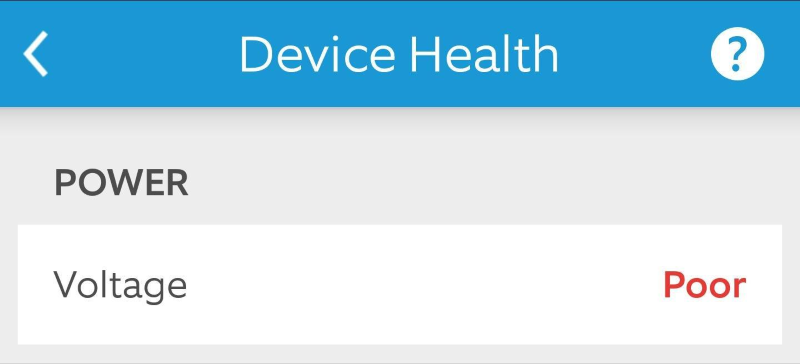
Ring doorbells have specific needs when it comes to voltage. If the voltage at your doorbell transformer is too low, your Ring will not work as it should. You can check the voltage using a multimeter. Make sure it matches the requirements for your Ring device. If the voltage isn’t right, reaching out to an electrician for help is your best bet.
How To Prevent Ring Doorbell From Going Offline?
Every second your Ring doorbell is offline, your home security is vulnerable. So, it’s best to prevent that from happening altogether. Here are a few maintenance routines and setup tips that help me ensure that my Ring devices stay connected all the time:
📶 Regularly Check Wi-Fi Strength and Router Placement:
Ensure your Wi-Fi signal is strong where your Ring devices are located. Periodically test your Wi-Fi speed near your Ring device to confirm. If needed, adjust the placement of your router or invest in a Wi-Fi extender or mesh network system to boost signal strength throughout your home.
🔄 Keep Firmware and Software Updated:
Regularly check for and install updates for your Ring devices and your router. Firmware updates often include fixes for connectivity issues and improvements to device performance.
🔋 Monitor Battery Levels:
For battery-powered Ring devices, regularly check the battery level through the Ring app and recharge the battery before it gets too low. Consider setting a reminder to check battery levels every few months.
🔌 Secure and Organize Wiring:
For wired devices, periodically inspect the wiring to ensure connections are tight and secure. Loose wires can lead to power interruptions. If you’re unsure about how to safely check your device’s wiring, consult a professional electrician.
⚙️ Adjust Your Network Settings:
Keep your Wi-Fi network settings updated in the Ring app, especially if you change your Wi-Fi network name (SSID) or password. Regularly review your router’s settings to ensure they’re optimized for smart home devices.
🖥️ Use Compatible Router Settings:
Ensure your router’s settings are compatible with your Ring devices. Some devices may not work well with certain advanced features like AP isolation, MAC address filtering, or very high-security settings. Consult your router’s manual or support site for guidance.
🛡️ Prevent VPN Interference:
If you use a VPN, ensure it’s configured to allow your smart devices to connect to the internet without issues. You may need to adjust settings or disable VPN features that may block connections to your Ring devices.
⚡ Ensure Adequate Power Supply:
Verify that your wired Ring devices have a stable and sufficient power supply. If you encounter power-related issues, it might be necessary to upgrade your doorbell transformer or consult with an electrician to ensure your home’s electrical system meets your Ring device’s needs.
🛠️ Regular Maintenance Checks:
Schedule regular maintenance checks for your Ring devices and your home network. This includes checking device placement, signal strength, battery levels, and ensuring all cables and power supplies are in good condition.
Wrapping Up: Reconnecting Your Ring Doorbell
I’ve found that regular maintenance is the key when it comes to ensuring consistent connectivity for your Ring Doorbell. It saves you a lot of anxiety. In sum, keeping your Ring devices online and preventing unexpected disconnections requires you to:
- Regularly test your WiFi on different devices to confirm stability and speed.
- Place your router in a central, unobstructed location to enhance signal strength.
- Understand how your Ring works without WiFi.
- Learn to change Ring Doorbell WiFi without removing it.
Frequently Asked Questions
How To Determine If My Ring Doorbell Is Disconnected From WiFi?
What happens when a Ring camera disconnects from Wi-Fi?
Why does my Ring camera keep disconnecting from WiFi?
What happens if Ring Doorbell loses WiFi connection?
How do I reset my Ring doorbell after losing internet?