![wyze camera black ]](https://justsmarter.net/wp-content/uploads/2024/05/wyze-camera-black--1500x1024.webp)


Key Takeaways:
- If your Wyze camera only shows black and white, it’s likely stuck in Night Vision mode.
- To fix it:
- Adjust the night vision settings.
- Place the camera at an appropriate location.
- Update the camera’s firmware.
Have you ever checked your Wyze camera feed only to find it stuck in black and white? I’ve faced this issue, and while it’s frustrating, it’s usually easy to fix. Let’s troubleshoot and get your camera back to showing clear, colorful video.
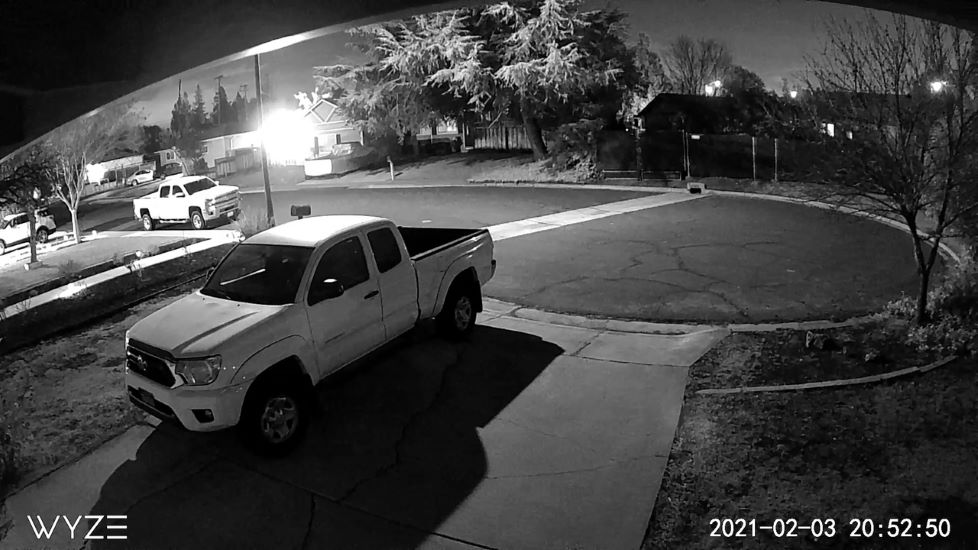
Why Is My Wyze Camera Only Showing Black And White?
Here is why Wyze camera shows only black and white image:
- 🌙 Stuck in Night Vision Mode: Night Vision mode might stay on due to a glitch or incorrect settings. Cameras can fail to switch back to color mode even in bright environments.
- 💡 Poor Camera Placement: Cameras placed in dark corners or facing poorly lit areas may constantly activate Night Vision. The camera relies on light levels to switch modes.
How to Fix a Wyze Camera Showing Black And White?
Here’s what I did to troubleshoot and fix my Wyze camera when it showed only black and white:

1. Adjust Night Vision Settings
In my experience, tweaking the night vision settings directly impacts whether your camera remains in black and white mode. Here is how to do it:
- Open the Wyze app and go to the live stream of the camera you want to adjust.
- Tap the moon icon to access the Night Vision Settings.
- Choose between On, Off, and Auto.
- Select Auto to let the camera adjust based on lighting conditions automatically.
- For more control, adjust the Sensitivity Settings.
- Go to the Advanced Settings.
- Select Dusk or Dark to dictate when night vision activates.
2. Check Camera Placement
Camera placement significantly influences how effectively it switches between modes.
- Place the camera in a well-lit area with consistent lighting.
- Avoid reflective surfaces or dark corners that confuse the light sensor.
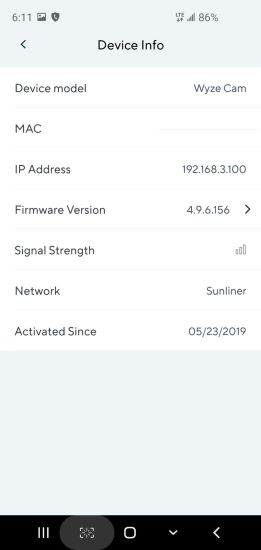
3. Update Camera Firmware and Software
Keeping your camera’s firmware and software up to date is crucial because new releases fix bugs that could cause issues like unwanted night vision activation. Here’s how to do it:
- Open the Wyze app on your device.
- Go to the Settings of the camera you want to update.
- Tap on Device Info.
- Select Firmware Version to see if any updates are available.
How Does Night Vision Work in Wyze Cameras?
Here is how night vision works in Wyze cameras:
- 🌜 Infrared Technology: IR LEDs emit infrared light in low-light conditions, allowing the camera to capture clear black-and-white footage.
- 🔄 Automatic Switching: The camera detects low light levels and activates Night Vision mode automatically.
- 🌈 Color Night Vision (Wyze Cam V3): Advanced models like the Wyze Cam V3 use a starlight sensor to deliver vibrant color images even in minimal light.

Wyze Camera Back to Full Color!
If your Wyze camera is stuck in black and white, adjust its Night Vision settings, improve placement, and keep the firmware updated. These quick fixes should have your camera showing colorful footage again.
Here are more articles you may like to explore:
- Why Is My Wyze Camera Upside Down & How To Fix It?
- How To Fix the “Wyze SD card not available” Error?
- How to Turn Off Infrared on Ring Camera and Doorbell?
Frequently Asked Questions
How to improve night vision clarity in smart cameras?
How to turn on color night vision in the Wyze camera?
1. Open the Wyze app.
2. Navigate to the live stream of your camera.
3. Go to Settings > Advanced Settings.
4. Set the Night Vision mode to Off to enable color night vision in low-light conditions.
How do I reset my Wyze camera settings?
1. Plugged in and power on the camera.
2. Press and hold the setup button on the bottom of the camera for about 10 seconds.
3. Release the button when the light on the camera starts flashing which indicates the reset is in process.
This process restores the default settings, erasing any custom settings, including Wi-Fi connections. It is used as a troubleshooting step when the camera is not functioning correctly.


Hashir
Hi, I’m Hashir, a tech enthusiast with a deep love for smart home innovations. My interest in technology has always been driven by the idea of making everyday life more streamlined and efficient. After years of experimenting with smart devices in my own home, I’ve made it my mission to share what I’ve learned with others. I focus on practical, easy-to-understand solutions that anyone can implement to enhance their home. Writing for JustSmarter allows me to connect with fellow tech lovers and help them take their first steps—or next steps—into the exciting world of smart homes.