

Key Takeaways
If your Ring video freezes:
- Check your Wi-Fi connection and internet speed.
- Restart Ring device and reboot the router.
- Update Ring app and device firmware.
- Lower video quality in settings.
- Reduce Wi-Fi interference from other devices.
- Test viewing on another device.
- Reinstall the Ring app.
- Contact Ring Support if issues persist.
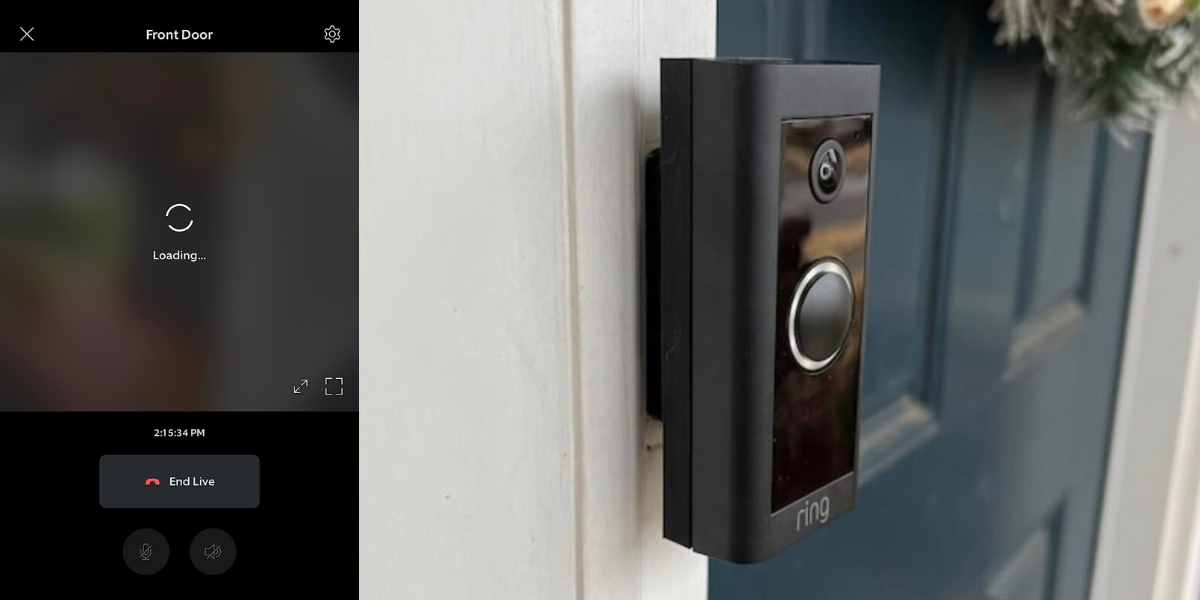
When your Ring video freezes, it compromises your security. This guide provides quick fixes to get your Ring Camera working smoothly, ensuring you don’t miss any important moments.
Why My Ring Video Freezes?
Your Ring video may freeze due to the following reasons:
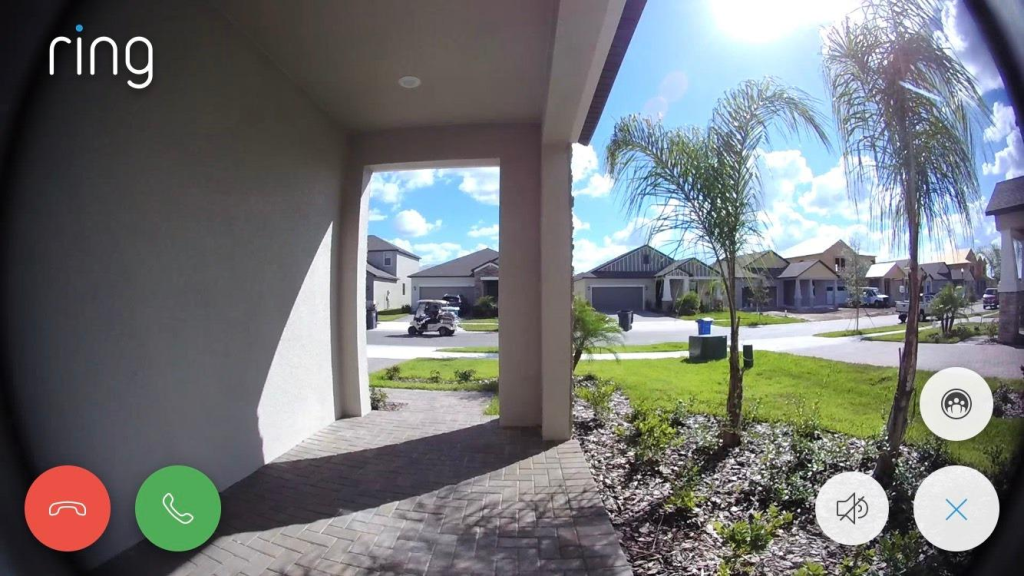
- 📶 Weak Wi-Fi Signal: Poor connection between your Ring device and the router can cause video freezing.
- 🐢 Low Internet Speed: Insufficient upload speed (below 2 Mbps) can disrupt the video feed.
- ⏳ Outdated Firmware or App: Running outdated software can cause performance issues.
- 📡 Interference: Other electronic devices or walls can interfere with your Wi-Fi signal.
- 🌡️ Device Overheating: Prolonged exposure to extreme temperatures can cause the device to freeze.
- 🔌 Power Issues: Unstable or low power supply can affect video performance.
- 🌐 Network Congestion: Too many devices using your network simultaneously can slow down the connection.
Addressing these issues can help prevent your Ring video from freezing.
How to Unfreeze Your Frozen Ring Video
There are a few ways to stop your Ring video from freezing and unfreeze the already frozen one. Below, I’ve shared the easiest ways to do that.
1. Check Wi-Fi Connection
If your Wi-Fi connection isn’t strong or stable, your Ring device will not work properly. So, make sure your Ring device is within range of your router and has a strong signal.
Here is how you can check Wi-Fi signal strength in the Ring app:
- Open the Ring app on your smartphone.
- Select the Ring device you’re having issues with.
- Tap on Device Health within the app.
- Look for the Signal Strength indicator to see your Wi-Fi connection’s quality.

A red or yellow signal (below -40) indicates weak or no Wi-Fi, while green means it’s fine. Check the signal at various times to monitor changes, especially if your internet seems slow.
But if the issue persists even with a stable internet connection, try the following tips:
- Move your router closer to the Ring device to boost signal strength.
- Clear obstacles between your router and Ring to improve the signal.
- Use a Wi-Fi extender to enhance the signal reach.
- Use Ethernet for Ring Elite for a stable connection.
2. Restart Your Ring Device
Like any tech device, temporary bugs can cause your Ring Doorbell video to freeze. Here are some quick fixes:
- Force close the Ring app on your smartphone.
- Open the Ring app again and check if the video freezing issue persists.
- If the issue is still there, reboot your Ring device by going to the Device Settings in the Ring app.
- Select Reboot Device.
This will clear any temporary software issues.
3. Reboot Your Router
If your Ring video freezes continuously, try rebooting your router. This helps reset your connection and can fix performance issues. Here’s how to reboot your router:
- Disconnect the power cable from the router.
- Allow it to rest for about 10 seconds.
- Reconnect the power cable.
- Wait a few minutes for the router to fully restart and reconnect to the internet.
4. Update Ring App
Video freezes can happen if your Ring app isn’t updated. Keeping it updated is essential for performance and bug fixes.
Here’s how to check and update your Ring app:
- Go to the App Store or Google Play Store.
- Search for the Ring app in the search bar.
- If there’s an update available, you’ll see an Update option.
- Tap it to start updating the app.
- After the update is complete, open the Ring app to see if the issue is resolved.
5. Lower Video Quality
Lowering video quality can help prevent freezing and improve overall streaming. Here’s how to lower video quality for your Ring devices:
- Open the Ring app on your phone.
- Select your Ring device from the Dashboard.
- Tap on Device Settings.
- Go to Video Settings.
- Choose a lower video quality option to reduce data usage and improve performance.
6. Reduce Interference
Here are a few tips to minimize network interference and improve your Ring device’s performance:
- Move the Router: Place your router in a central, open location, away from thick walls or metal objects.
- Avoid Electronic Devices: Keep the router away from devices like microwaves, cordless phones, and baby monitors that can disrupt signals.
- Change Wi-Fi Channel: Access your router settings and switch to a less congested channel.
- Use 5GHz Band: If your router supports it, switch to the 5GHz band for less interference compared to 2.4GHz.
7. Check Power Supply
A stable power supply is crucial for your Ring device’s performance. Power issues can cause freezing or disruptions. Follow these steps to ensure your device is receiving consistent power:
- Ensure all cables are securely connected, and there are no signs of wear or damage.
- Verify the power adapter is plugged in properly and functioning.
- If possible, use a multimeter to check the voltage output, ensuring it matches the required specifications.
- Check the Ring app for any notifications about low power or connectivity issues.
8. Reinstall the Ring App
Reinstalling the app can fix bugs and improve performance. Here’s how to reinstall the Ring app on your smartphone:
- Go to your device’s app settings.
- Find the Ring app and tap Uninstall or Remove.
- Restart your device to clear any temporary issues.
- Go to the App Store (iOS) or Google Play Store (Android), search for the Ring app, and download it again.
- Open the app and sign in with your Ring account details.
9. Check Physical Damage
Physical damage to your Ring Camera, from weather or wear and tear, can cause video freezing. Here’s how to check your device for physical damage:
- Look for cracks, dents, or any visible damage on the Ring device’s body and lens.
- Check power cables, connectors, and mounts for wear, fraying, or damage.
- Test that all buttons function properly and ports are not blocked or damaged.
- Gently clean the camera lens and sensors to ensure clear video and proper operation.
10. Contact Ring Support
If you’ve tried all troubleshooting steps and your Ring device still has issues, contacting Ring Support is the best next step. They can provide personalized assistance, help identify deeper problems, and offer potential fixes or replacements if needed.
Say Goodbye to Ring Video Freezing!
Frozen Ring videos are often caused by Wi-Fi and internet issues. Ensure your Wi-Fi is strong, stable, and has enough bandwidth for your Ring and other connected devices.
For more on Ring, check out our expert guides below:
- Your Ring Doorbell will work with mobile hotspot, but it may have connectivity issues due to speed and data limits.
- Your Ring Camera can trigger alarm when integrated with Ring Alarm.
- Your Ring Doorbell rings once per press to avoid spam, with a 30-40 second wait and no alerts until the first recording finishes.
Frequently Asked Questions
Why does my Ring camera keep freezing?
What is the Ring doorbell freezing on the video?
Can I unfreeze my Ring camera video without losing work?


Hashir
Hi, I’m Hashir, a tech enthusiast with a deep love for smart home innovations. My interest in technology has always been driven by the idea of making everyday life more streamlined and efficient. After years of experimenting with smart devices in my own home, I’ve made it my mission to share what I’ve learned with others. I focus on practical, easy-to-understand solutions that anyone can implement to enhance their home. Writing for JustSmarter allows me to connect with fellow tech lovers and help them take their first steps—or next steps—into the exciting world of smart homes.